
With the release of the v4.0 engine, architectural visualization has reached a new level — stronger, smarter, and more precise. However, this upgrade also demands a better understanding of how prompts influence the rendering process.
In this guide, we’ll explore how different prompt scenarios affect the output, and how to use them effectively to get the result you want. We’ll also look at the role of Render Modes and Scenarios, and how combining them with the right prompt can help you achieve the most accurate and visually powerful renders possible.
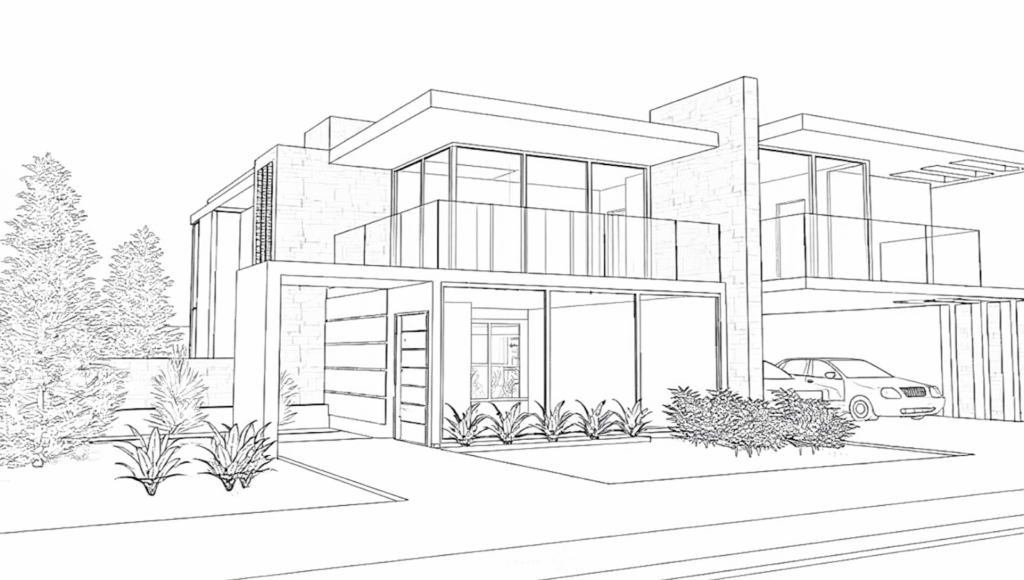
Attached here is the sample input image:
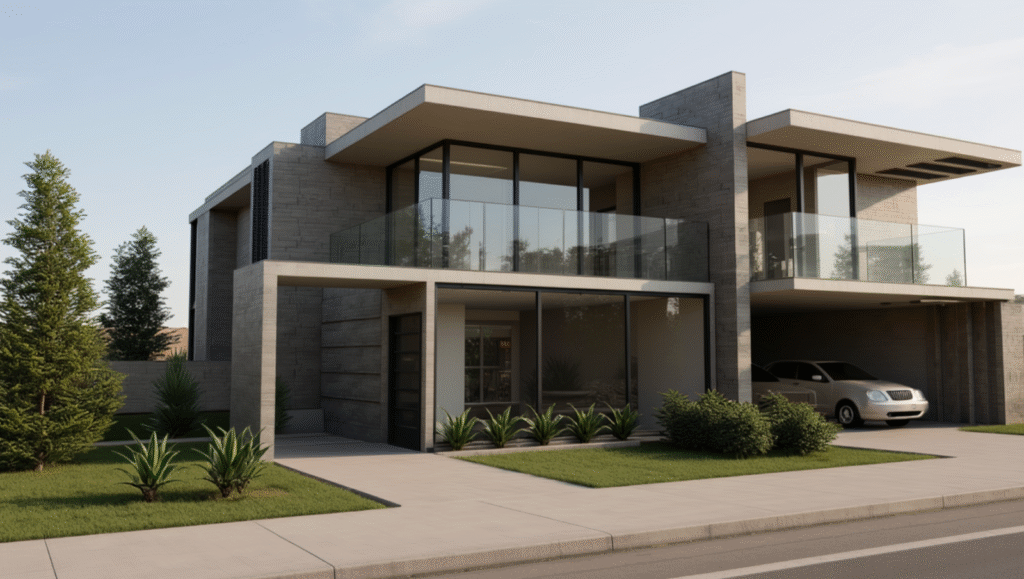
Scenario 1
Settings: Balanced Mode + Render Scenario
Prompt: realistic photo
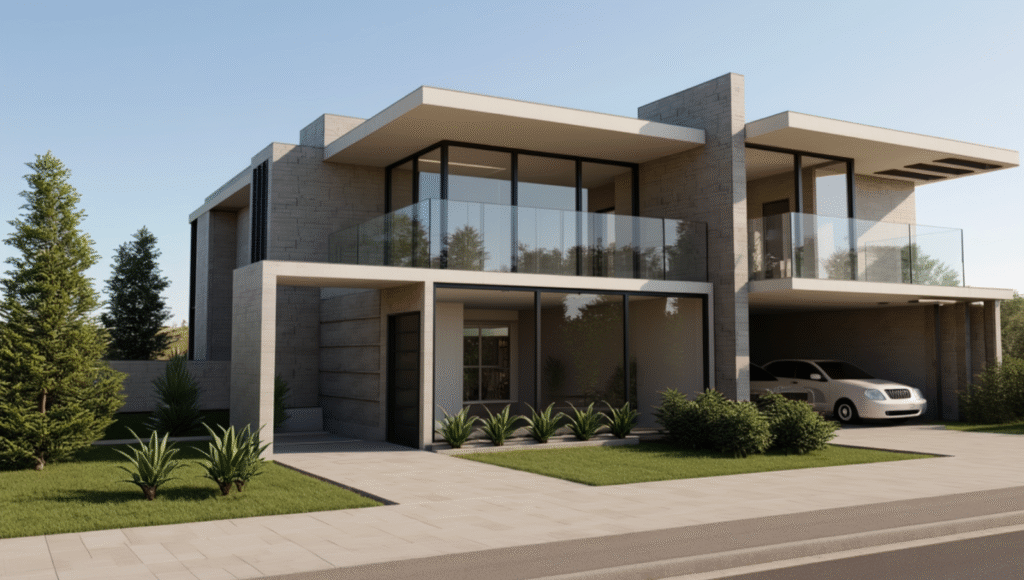
Scenario 2
Settings: Balanced Mode + Render Scenario
Prompt: realistic photo of a villa
Scenario 3
Settings: Balanced Mode + Render Scenario
Prompt: realistic photo of a villa, facade is beige tiles, curtain wall glazing, bright daylight, urban setting, mountain in the background, street and cars, people walking
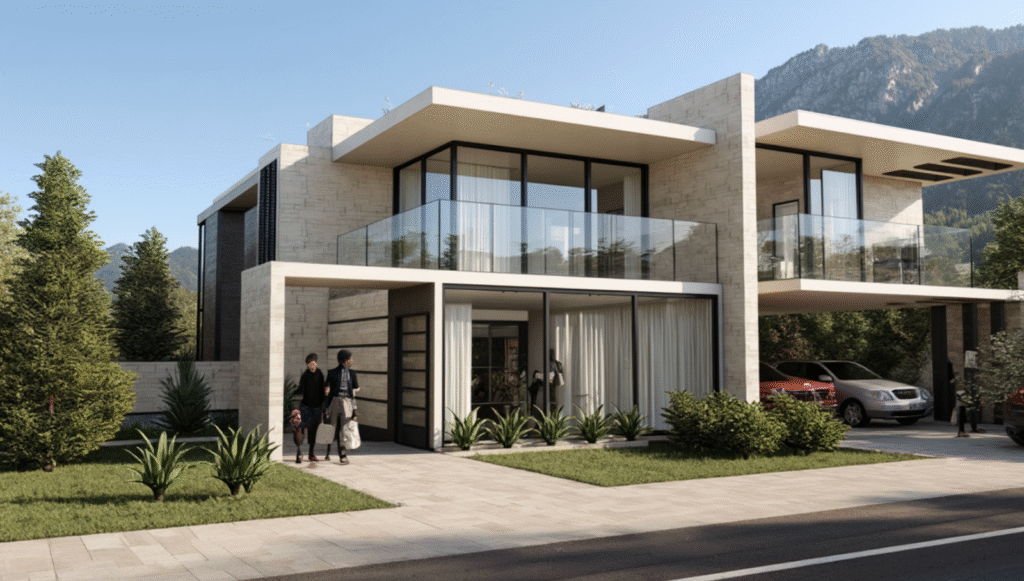
Scenario 4
Settings: Balanced Mode + Assisted Render Scenario
Prompt: realistic photo of a villa modified to Photorealistic exterior rendering of a contemporary villa, continuous floor-to-ceiling glazing balanced with limestone cladding and vertical cedar slats, furnished living room and glowing pendant lights visible through glazed facade, manicured garden with native shrubs and trees, bright daylight, street-level perspective, soft reflections and warm interior glow
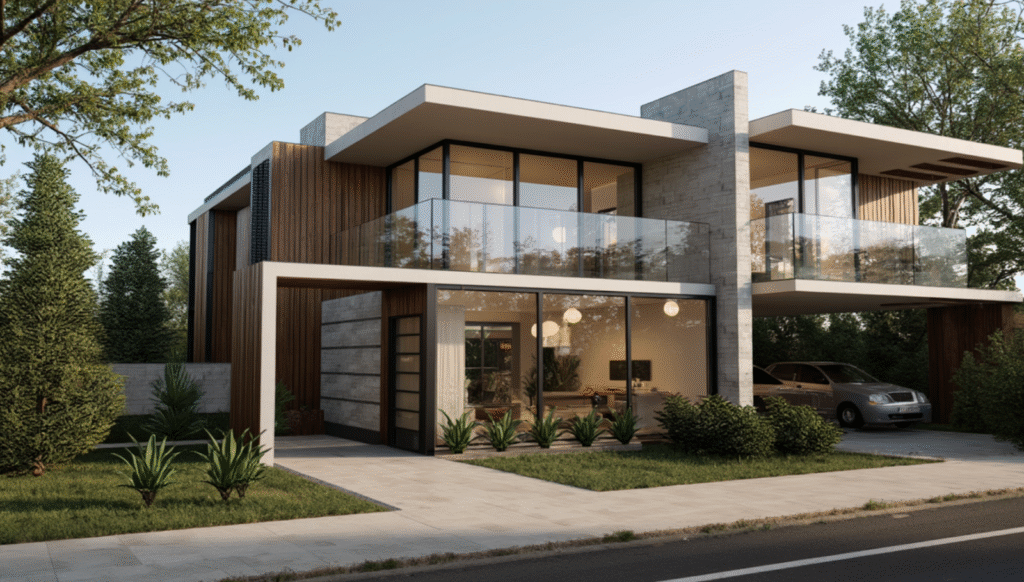
Scenario 5
Settings: Creative Mode + Edit Scenario
Prompt: create night shot, enhance lighting, add people walking, add car lights
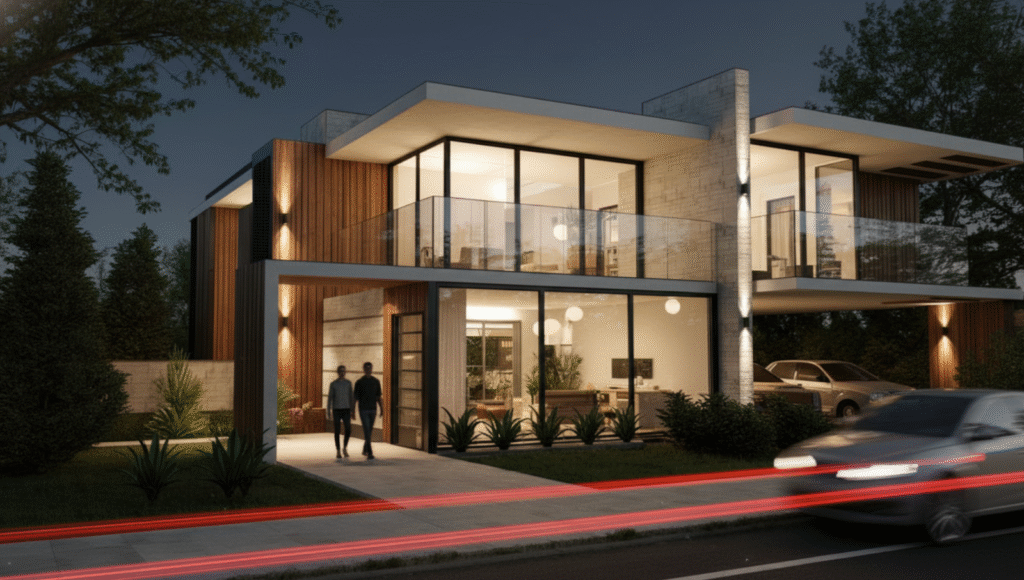
Scenario 6
Settings: Creative Mode + Edit Scenario
Prompt: make it snowing
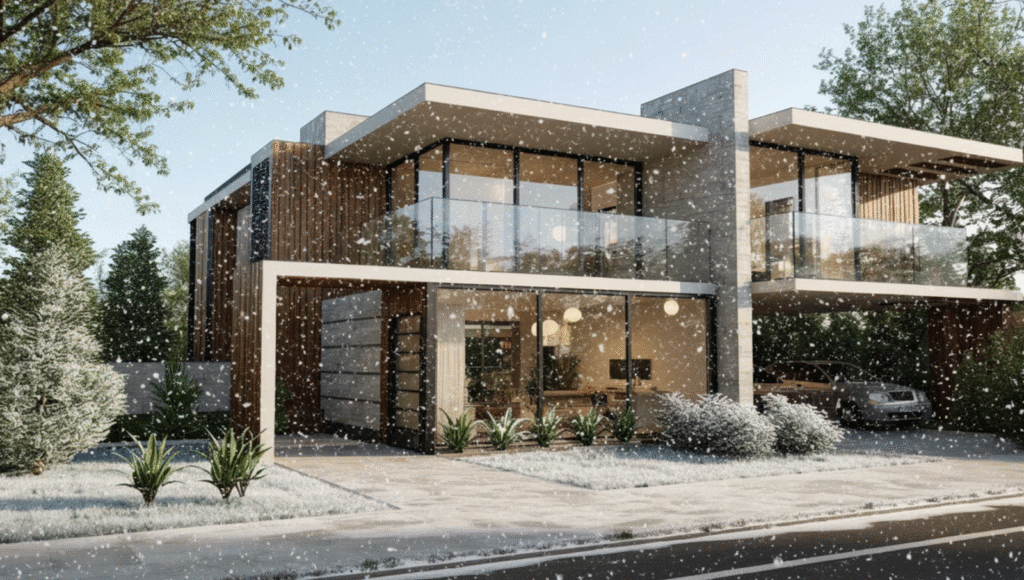
Scenario 7
Settings: Creative Mode + Edit Scenario
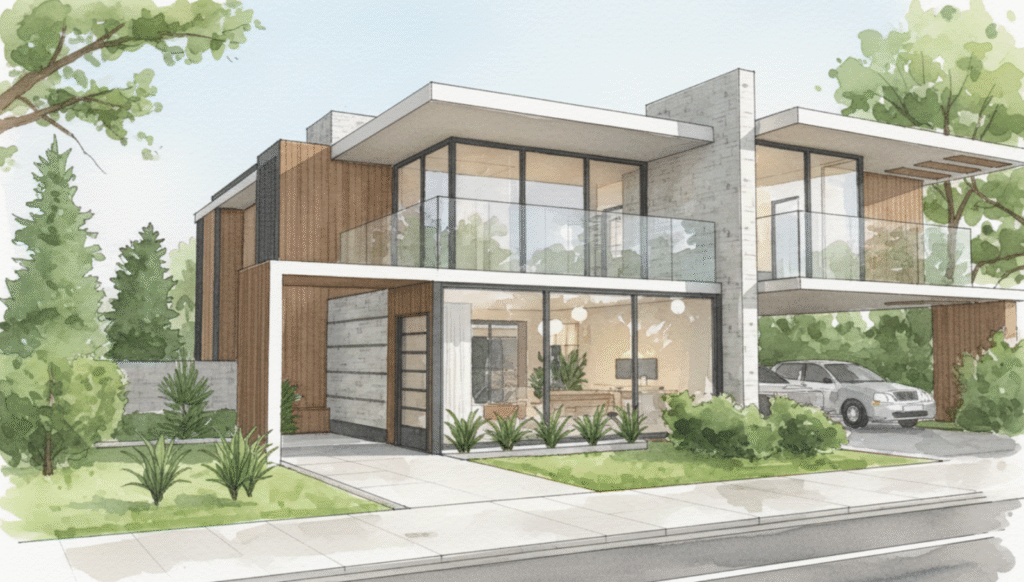
Prompt: make it watercolor sketch
Final Thoughts
Getting the right result in ArchDiffusion v4.0 depends on how well you combine your prompt, render mode, and scenario. Each one plays a key role: the prompt defines your vision, the render mode controls the level of creativity or realism, and the scenario determines how the AI interprets your instructions.
A clear, descriptive prompt paired with the right mode can completely change the outcome—whether you’re refining a detail, changing lighting, or transforming a full scene. Take time to experiment with different settings, and you’ll quickly learn how to guide the engine to create the exact look and feel you want.