
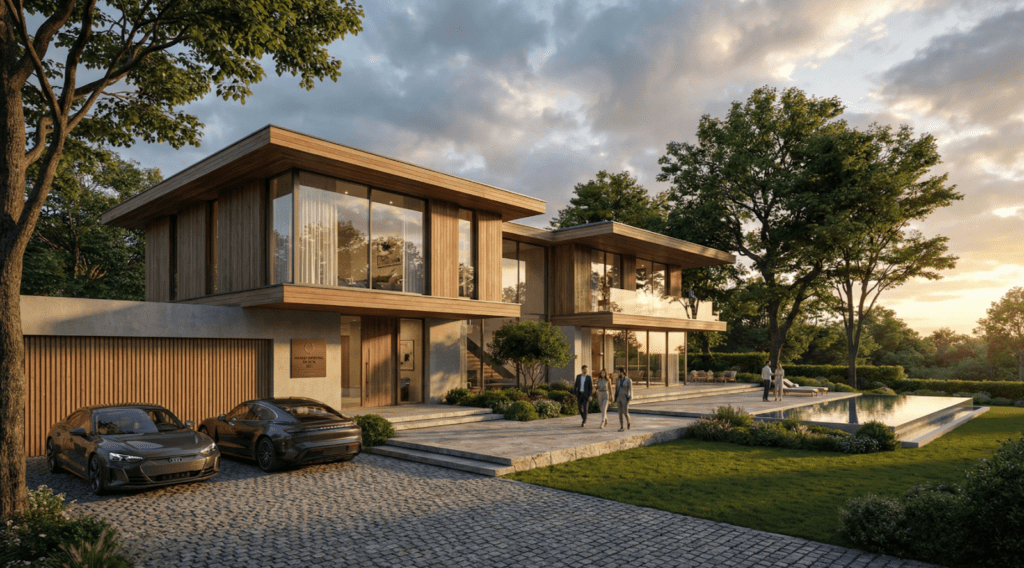
This guide explains how to use Imagine AI with the ArchDiffusion v4.1 engine to explore architectural concepts and creative design ideas. You’ll be introduced to the updated interface, learn about the key enhancements in the latest release, and find practical sample settings you can apply immediately.
Whether you’re generating early-stage concepts or fine-tuning an existing design, this walkthrough is designed to help you produce high-quality results efficiently. Let’s begin.
Interface Walkthrough
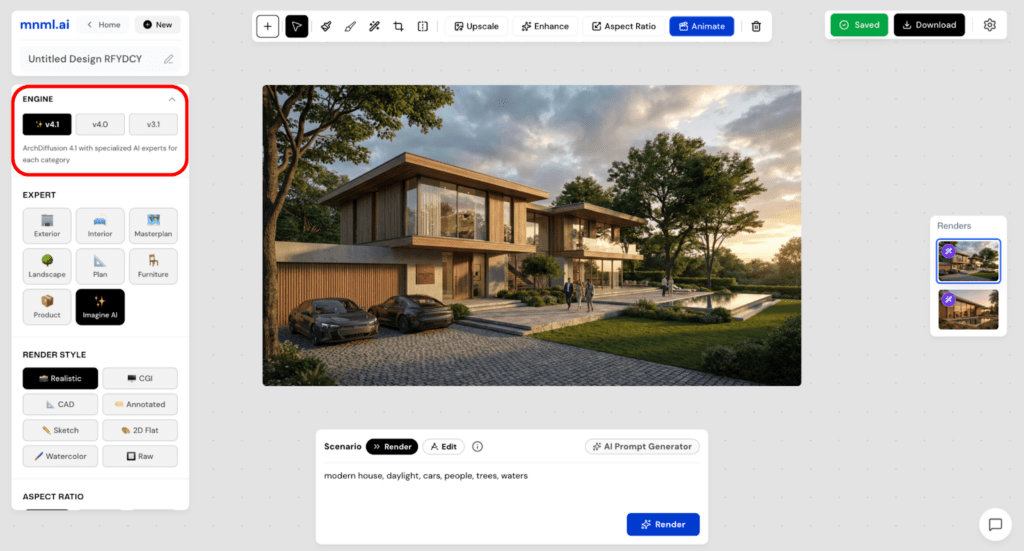
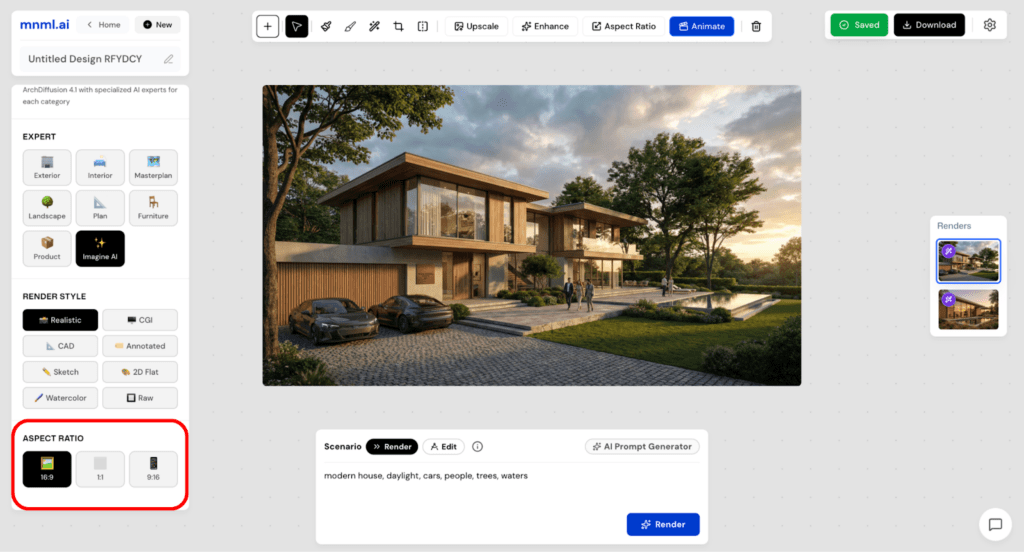
The ArchDiffusion v4.1 engine appears in the top-left corner of the interface, alongside other available engines. Use this menu to select the engine version you want to work with before generating or refining designs.
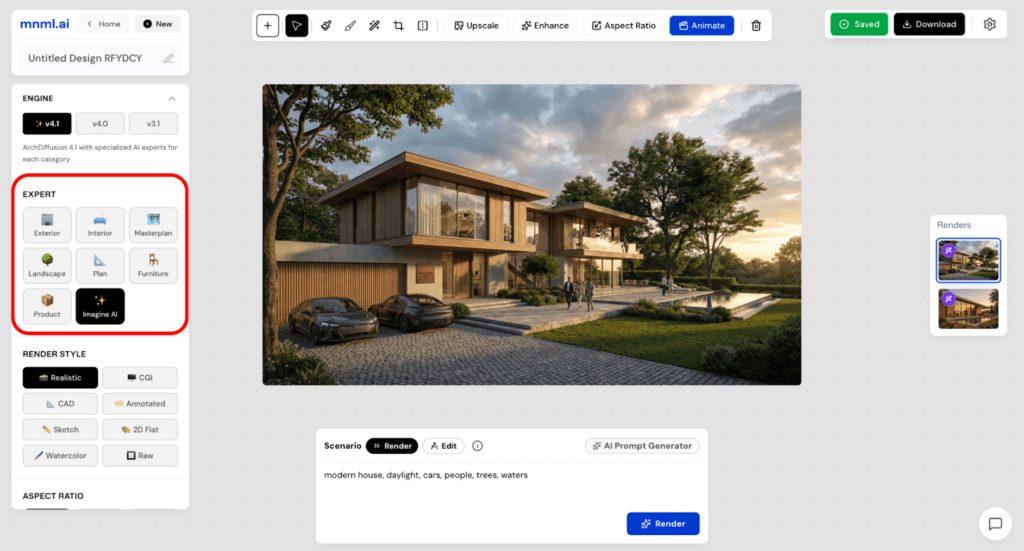
The Expert section allows you to specify your project type—such as Interior, Exterior, or Imagine. Selecting the appropriate category helps the AI better interpret your design intent and produce more relevant results.
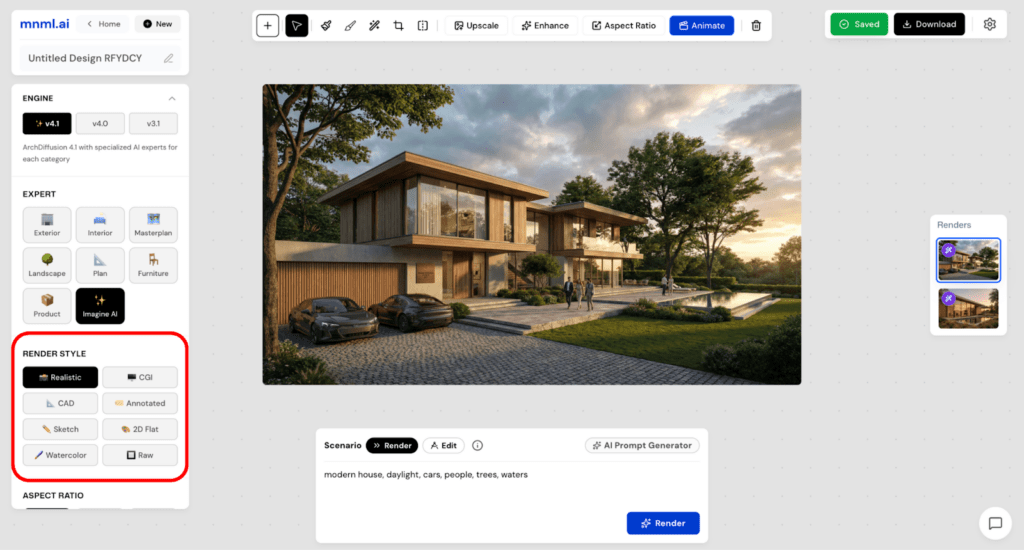
Next, navigate to Render Style. This setting determines the overall visual style and mood of the generated output. While Realistic is the most commonly used option, alternative styles such as CGI or Sketch can be selected to suit different design explorations and presentation requirements.
At the bottom of the interface, you’ll find the Aspect Ratio setting. This option controls the canvas size of your output. Select 16:9, 1:1, or 9:16 based on how you plan to use the final image.
To complete the setup, navigate to the Prompt box and select a Scenario. Choose Render for more controlled and accurate results, or select Edit if you prefer greater creative flexibility.
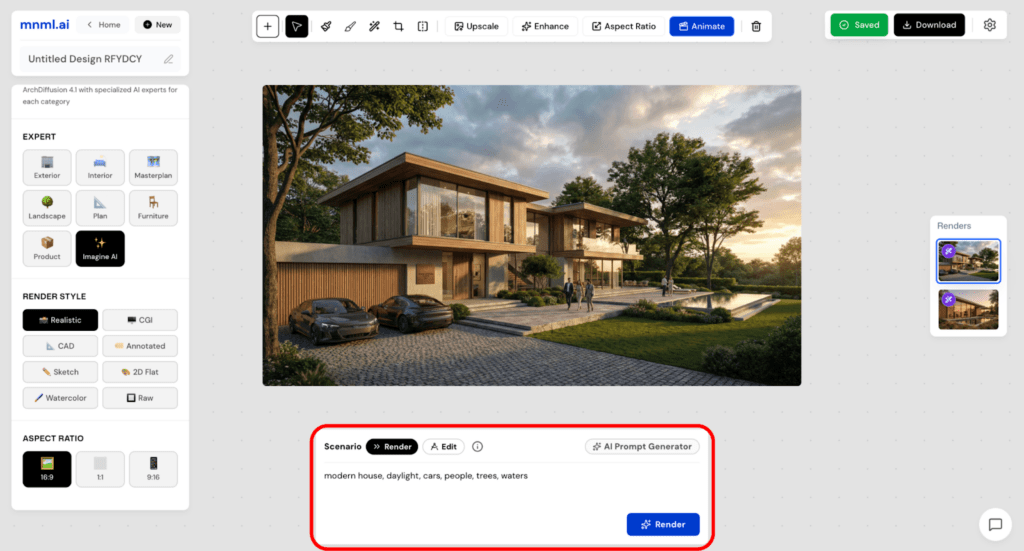
Once all settings are configured, click Render and wait a few moments for your design to generate.
Sample Workflows
Now, let’s take a look at some Imagine AI design parameters you can try right away.
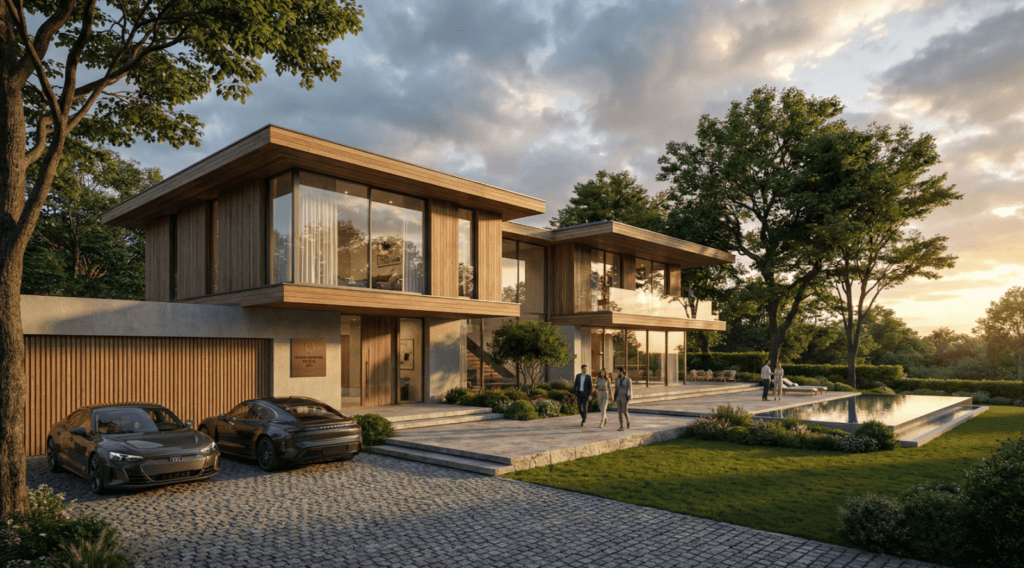
Sample 1
Engine: v4.1
Expert: Imagine
Render Style: Realistic
Aspect Ratio: 16:9
Prompt Scenario: Render
Prompt: modern house, daylight, cars, people, trees, waters
Sample 2
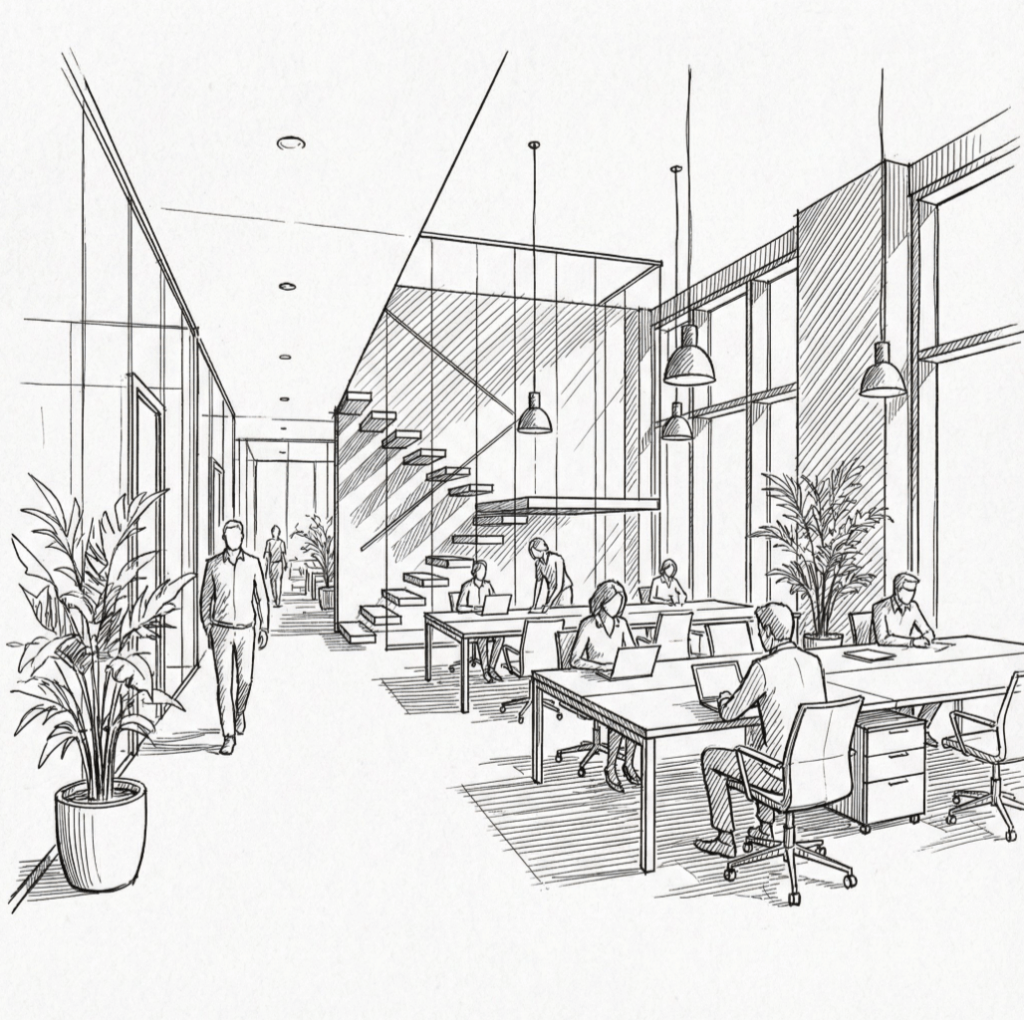
Engine: v4.1
Expert: Imagine
Render Style: Sketch
Aspect Ratio: 1:1
Prompt Scenario: Render
Prompt: CAD clean line sketch of a modern office interior, black and white only, no text, add people, add plants, fit the canvas, no white border space
Sample 3
Engine: v4.1
Expert: Imagine
Render Style: Realistic
Aspect Ratio: 16:9
Prompt Scenario: Render
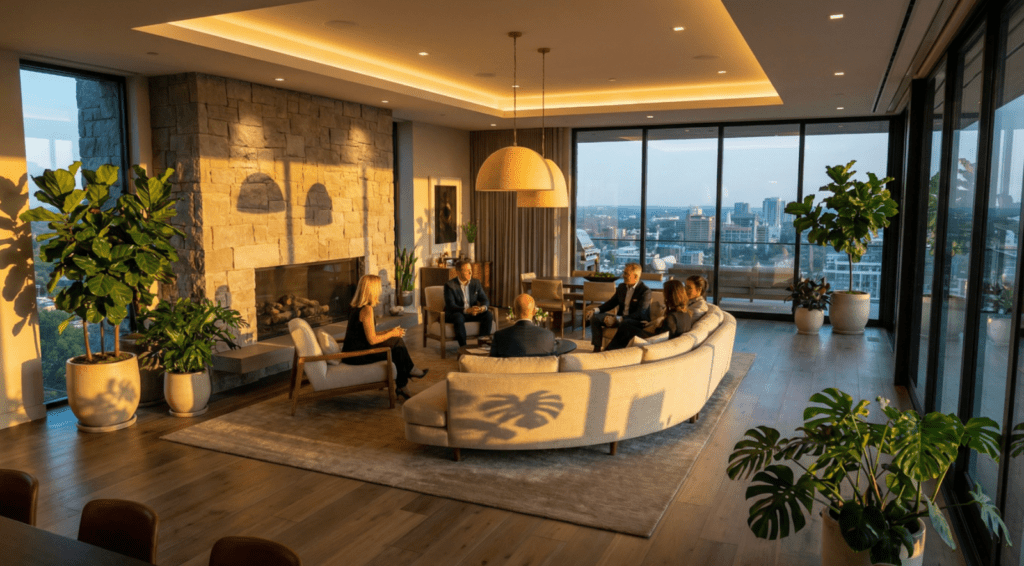
Prompt: modern living room, aerial view, people, plants, nice lighting, aerial view
Final Takeaways
Imagine AI with ArchDiffusion v4.1 enables you to create architectural visuals quickly and intuitively, even if you are new to the platform. With smart presets, flexible render styles, and guided scenarios, concepts are transformed into clear, high-quality visuals in seconds. Rather than navigating complex settings, you can focus on creativity—exploring, refining, and visualizing designs with confidence. ArchDiffusion v4.1 helps bridge the gap between imagination and execution, turning ideas into presentation-ready results with ease.