

In this guide, we’ll explore another powerful feature in mnml.ai — the Render Enhancer. This tool is especially useful during the final stages of design, when you’re refining and preparing your render for presentation.
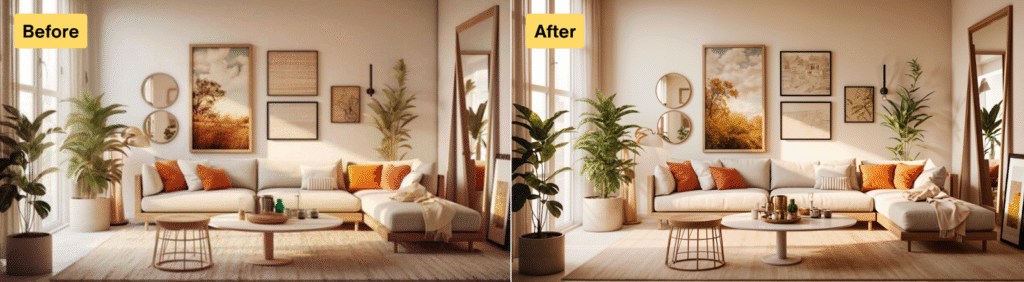
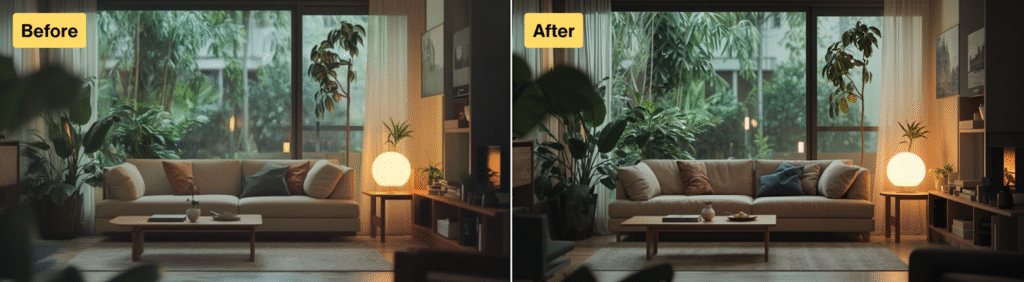
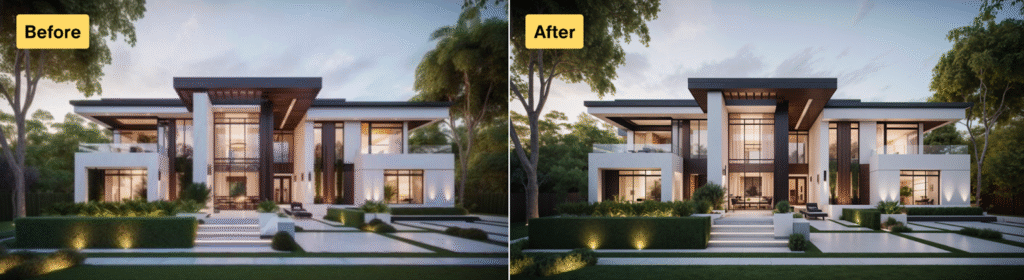
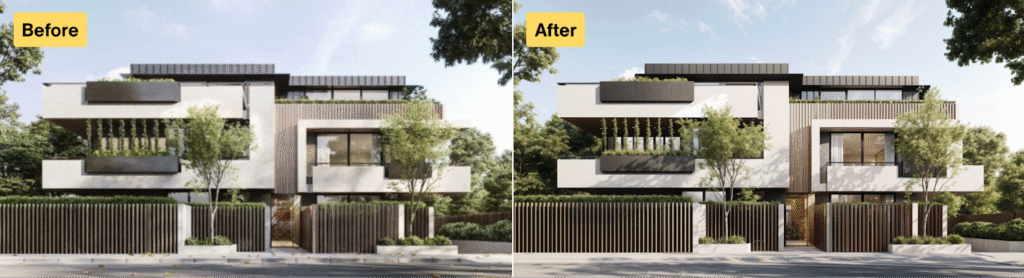
The Render Enhancer doesn’t just deliver a 4K-quality result, it also intelligently adjusts elements in your design to make them more defined and visually suitable based on the overall context.
In this guide, we’ll go over how it works and show real examples of its effect in action.
You can locate this tool on the top center area of the interface.
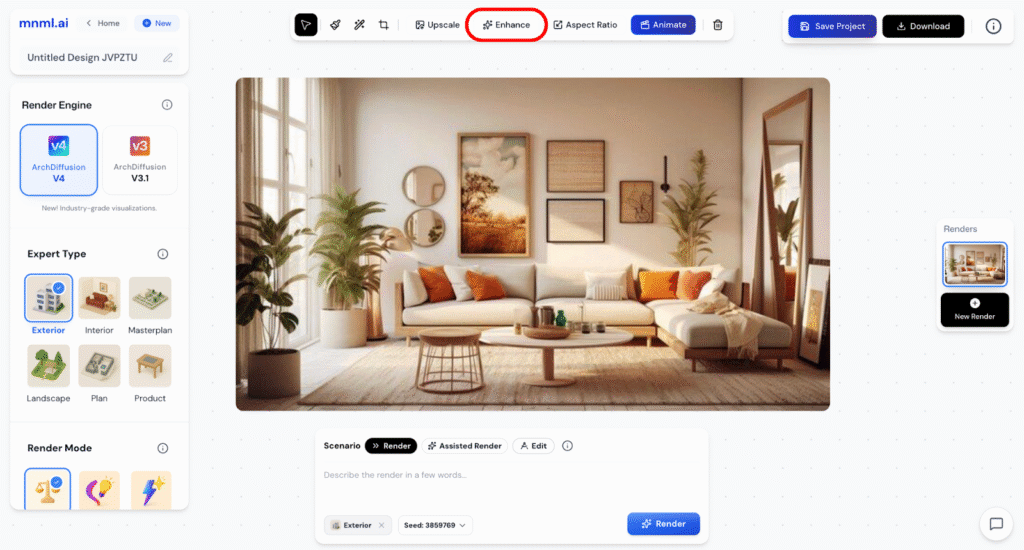
Note: Keep in mind, if you want your render to remain exactly the same, this may not be the right tool; in that case, use the Upscaler instead. But if you’re open to subtle improvements and enhancements, the Render Enhancer is perfect for you.
How to Enhance Your Renders
To enhance your renders using the Render Enhancer, follow these simple steps:
- Upload the image you want to enhance.
- Click the Enhance button located at the top center of the Studio interface.
- Wait for the process to complete as the AI refines your render.
- Once done, your enhanced image will be ready for download in 4K quality.
This process is quick and efficient, giving your design a polished and professional finish with minimal effort.
Samples (Interior)
Samples (Exterior)
Final Takeaways
The Render Enhancer is a powerful finishing tool that brings your designs to life with sharper details, improved lighting, and higher visual clarity. It’s perfect for giving your final renders a professional, presentation-ready quality. Use it when you’re ready to polish your work and make subtle but impactful improvements especially for both interior and exterior scenes.