
Ultra Mode is one of the three render modes available in the new Studio on mnml.ai. It is designed to deliver premium-quality results with maximum detail and precision. This guide will help you understand how to make the most of Ultra Mode to achieve the best and most accurate renders possible. We’ll also cover how to combine it with your prompts effectively to bring out its full potential.
Prompt Comparisons Using Ultra Mode
Let’s explore how Ultra Mode responds to different prompt lengths, from short two-word prompts to more detailed ones. This section will show you five levels of prompts, helping you understand how Ultra Mode interprets and refines details based on the amount of information you provide. Knowing how it reacts will help you craft prompts that produce the most accurate and visually refined results.
Attached below is the input image used:
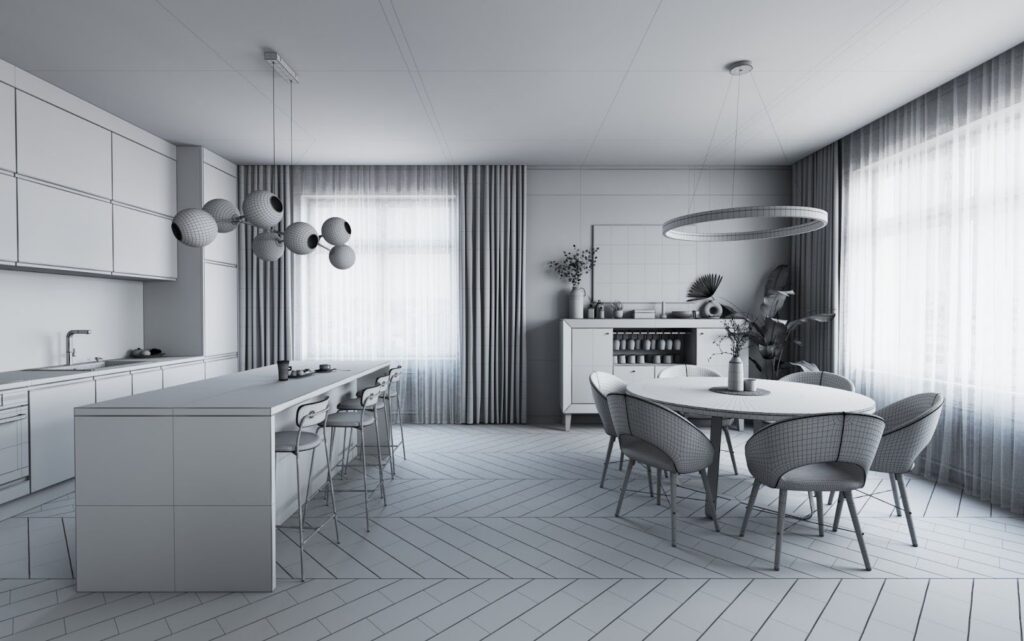
Prompt 1: Realistic render
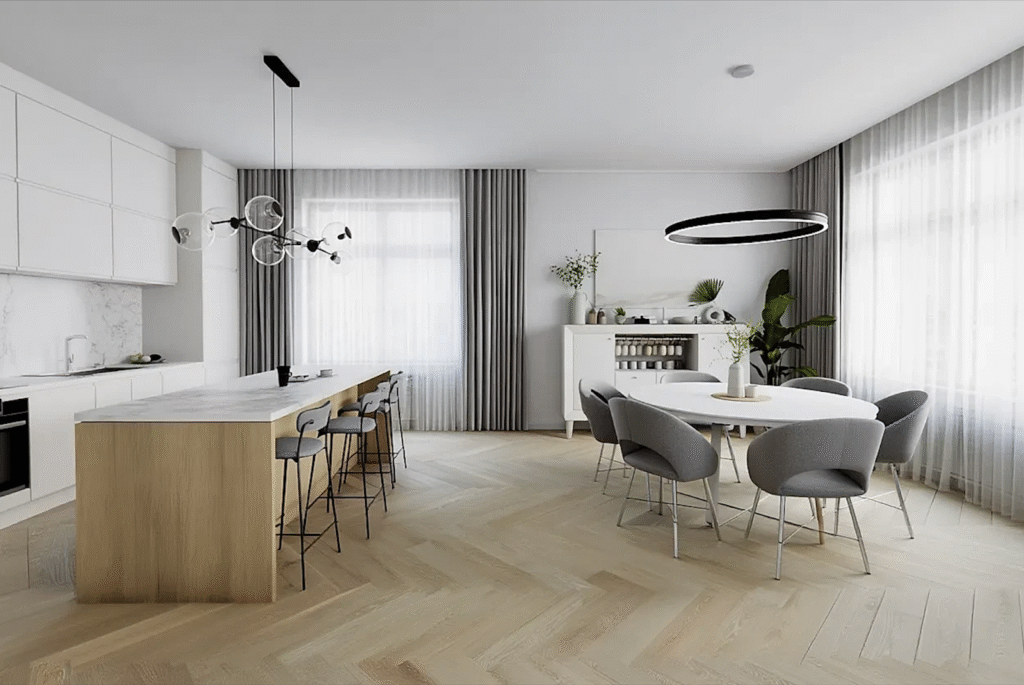
Prompt 2: Transform into award-winning photorealistic interior render with natural sunlight, well-lit interior, ultra-detailed fabric textures, realistic reflections, volumetric lighting, and CGI-grade visualization standards
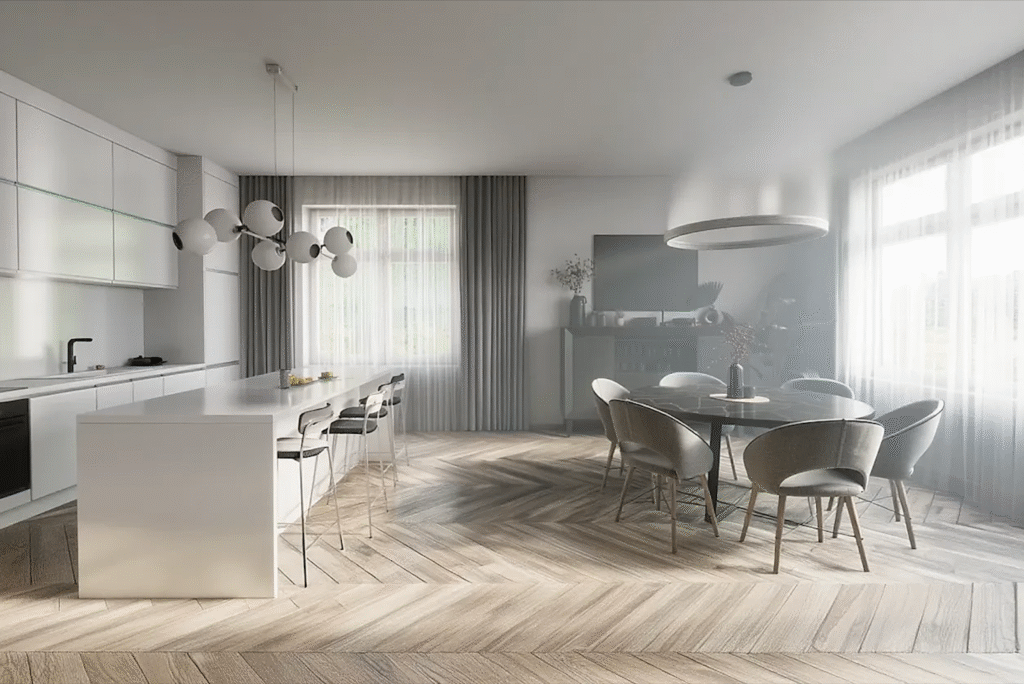
Prompt 3: Ultra-realistic interior render with enhanced natural textures, sharp details, and vivid contrast. Balanced, cinematic lighting with high dynamic range highlights both shadows and bright areas with clarity. Soft shadows and subtle reflections add depth and realism. Natural depth of field and precise proportions create a photographic look, with crisp edges, polished finish, and lifelike atmosphere.
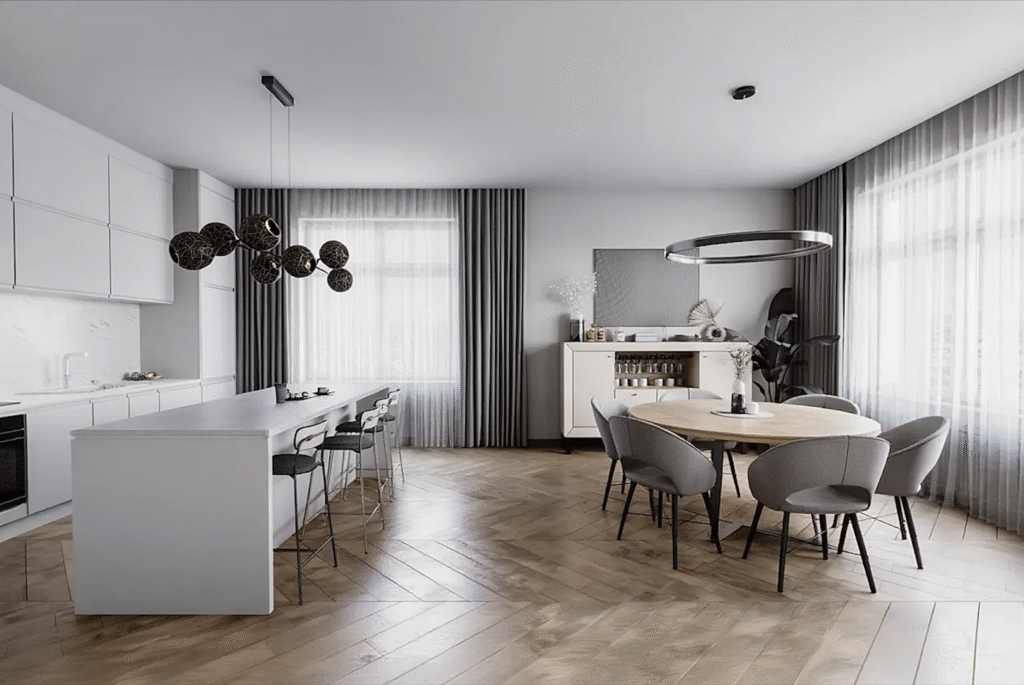
Prompt 4: Ultra-realistic interior render with enhanced natural textures, sharp details, and vivid contrast. Balanced, cinematic lighting with high dynamic range highlights both shadows and bright areas with clarity. Soft shadows and subtle reflections add depth and realism. Precise proportions create a photographic look, with crisp edges, polished finish, and lifelike atmosphere.
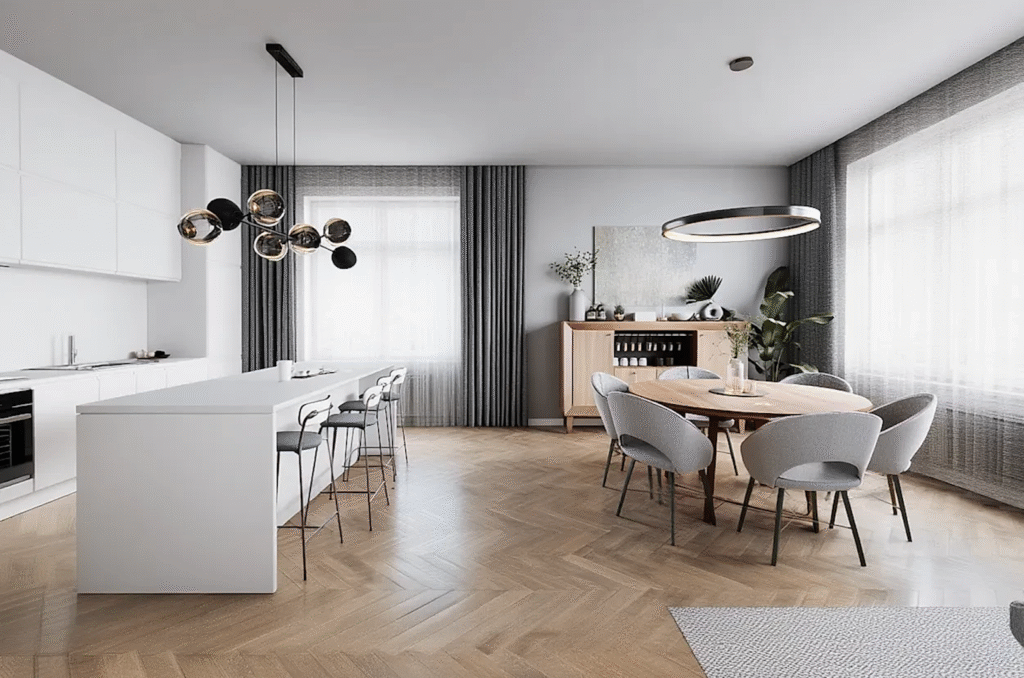
Prompt 5: High-quality architectural visualization with natural daylight and realistic materials textures. soft natural daylight streaming through the windows, realistic wood grain textures on the flooring, proper fabric rendering on the furniture and curtains, and authentic shadow casting that gives the space depth and atmosphere.
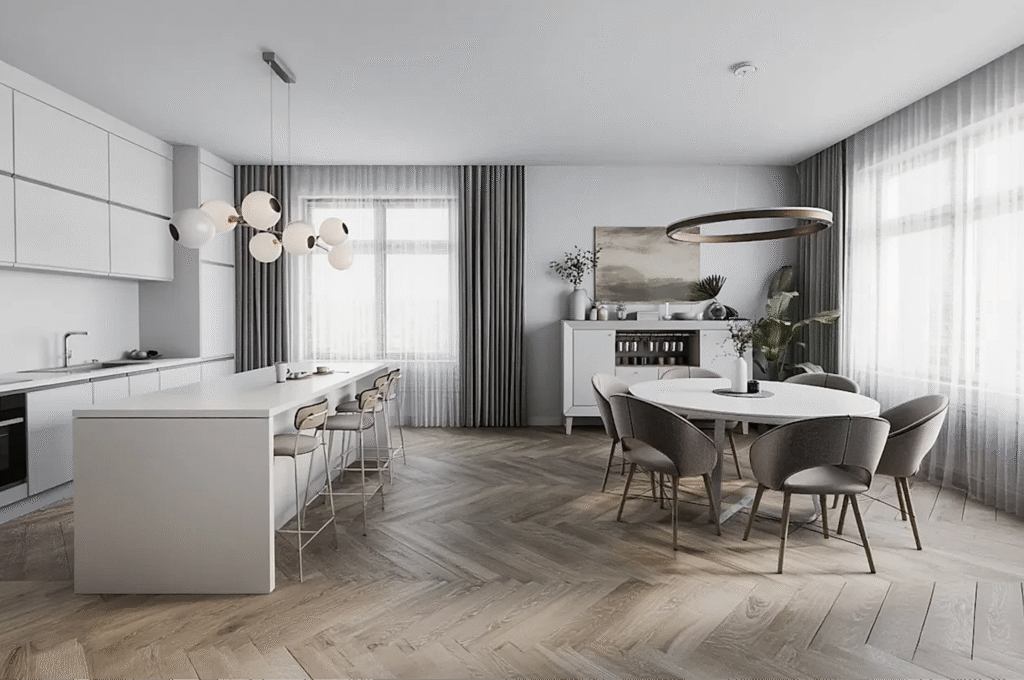
Based on the results, we can see that the choice of words and descriptions makes a big difference when using Ultra Mode. It’s important to remember that longer prompts don’t always mean better outputs—clarity and relevance matter more than length.
Feel free to use this prompt format and refine it to suit your own design goals. And if you’re not sure where to start, mnml.ai can help. Use the Prompt Generator tool in to create effective prompts that work seamlessly with Ultra Mode.
Using Ultra Mode with Different Camera Views
Now, let’s look at how to use Ultra Mode with different camera views or perspectives. This part of the guide will show some of the most useful and common camera angles for interior projects.
You can always modify your prompts and explore creative combinations to match your design goals. Ultra Mode will adapt beautifully to different viewpoints, helping you visualize your space with precision and realism from every angle.
Attached below is the original input:
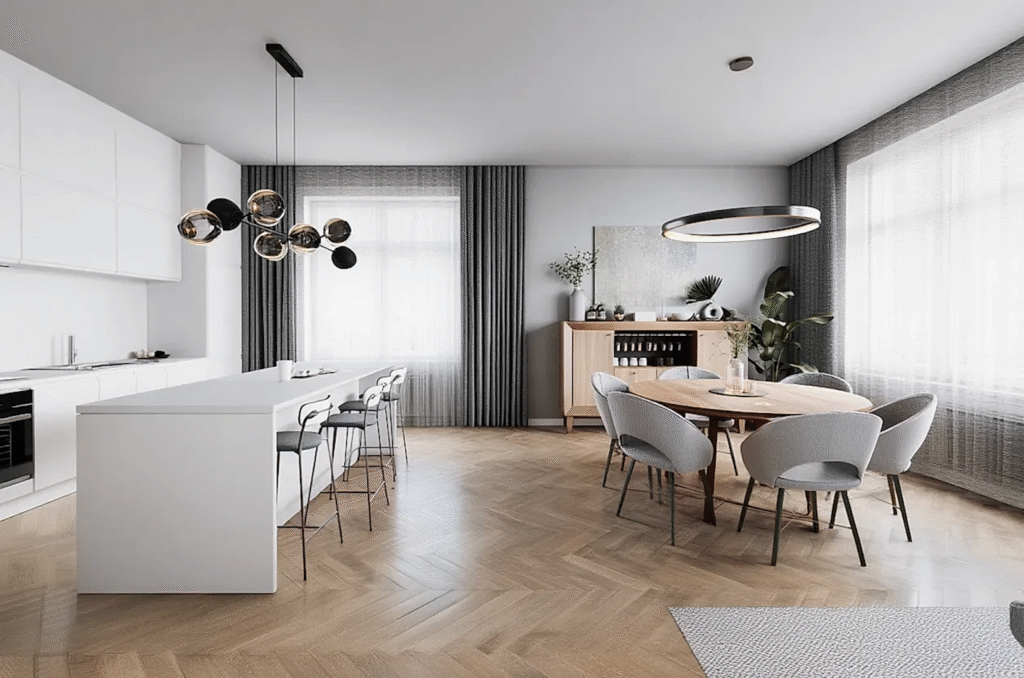
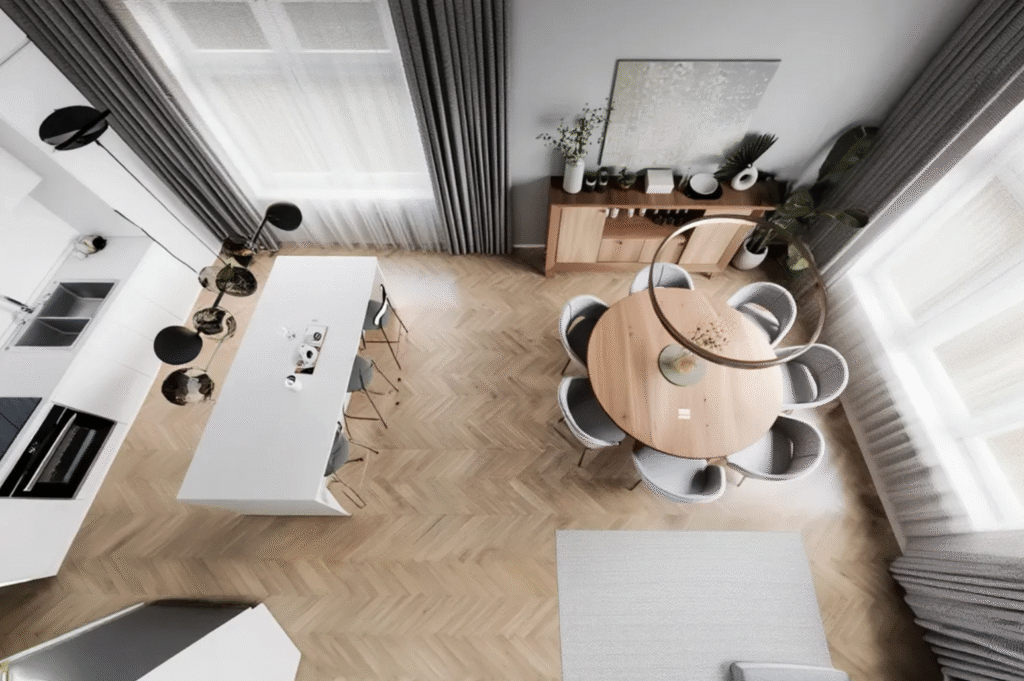
Top View
Settings: Ultra Mode + Edit Scenario
Prompt: change camera view to top view, hyperrealistic, maintain 100% geometry and accuracy of the original image
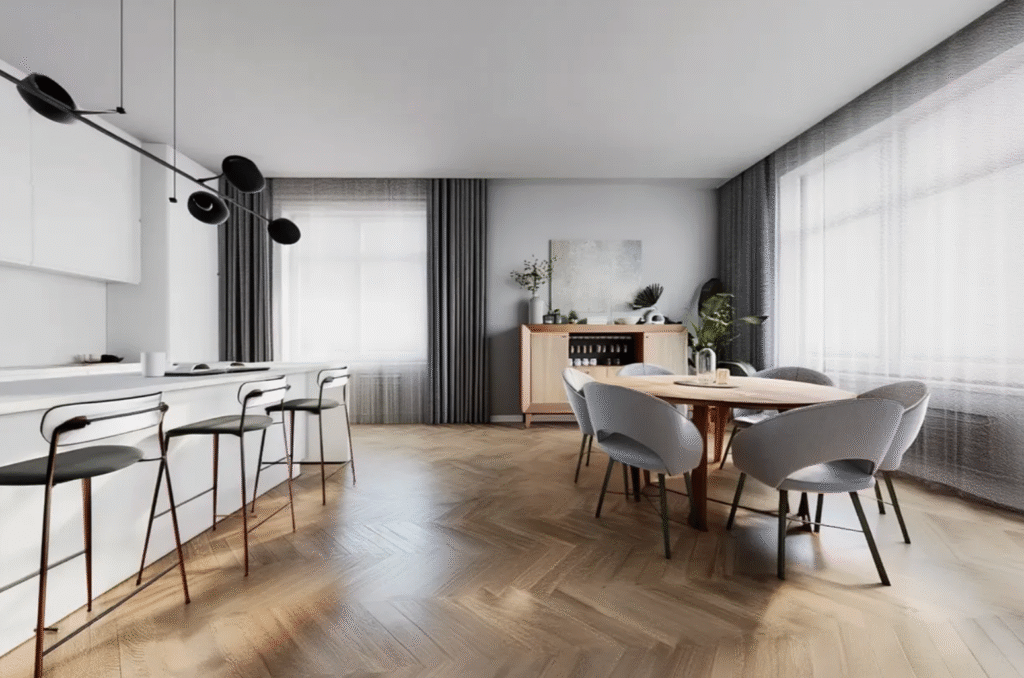
Corner View
Settings: Ultra Mode + Render Scenario
Prompt: change camera view to corner view, hyperrealistic, maintain 100% geometry and accuracy of the original image
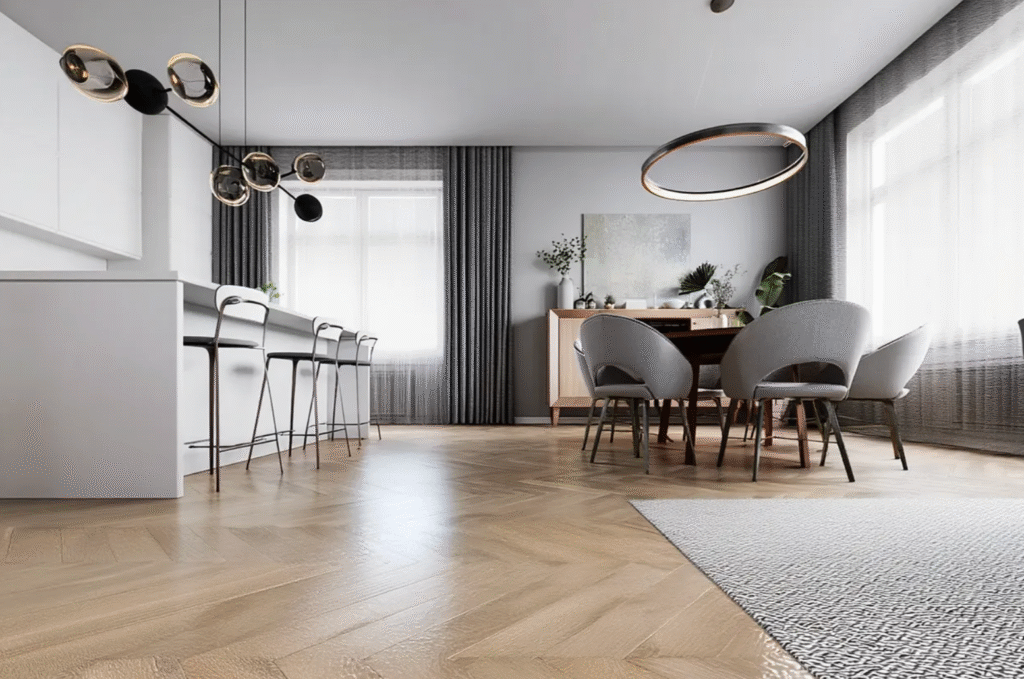
Ant’s Eye View
Settings: Ultra Mode + Edit Scenario
Prompt: change camera view to ant’s eye view, hyperrealistic, maintain 100% geometry and accuracy of the original image
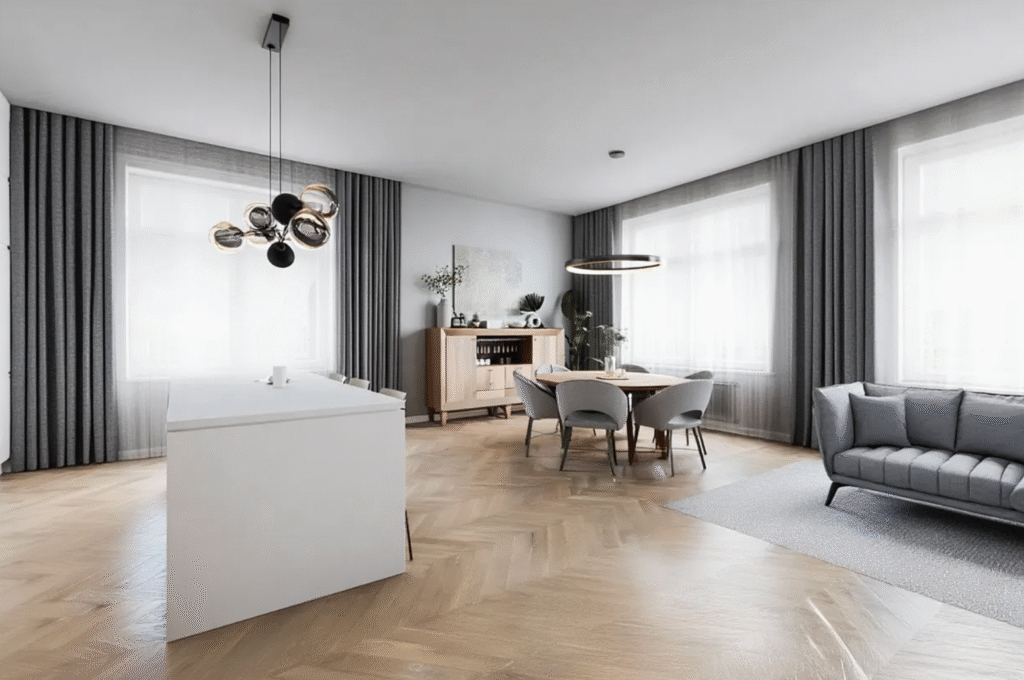
Wide Shot
Settings: Ultra Mode + Edit Scenario
Prompt: change camera view to wide shot view, hyperrealistic, maintain 100% geometry and accuracy of the original image
Close-up Shot
Settings: Ultra Mode + Edit Scenario
Prompt: change camera view to close-up view facing the table on right, hyperrealistic, maintain 100% geometry and accuracy of the original image
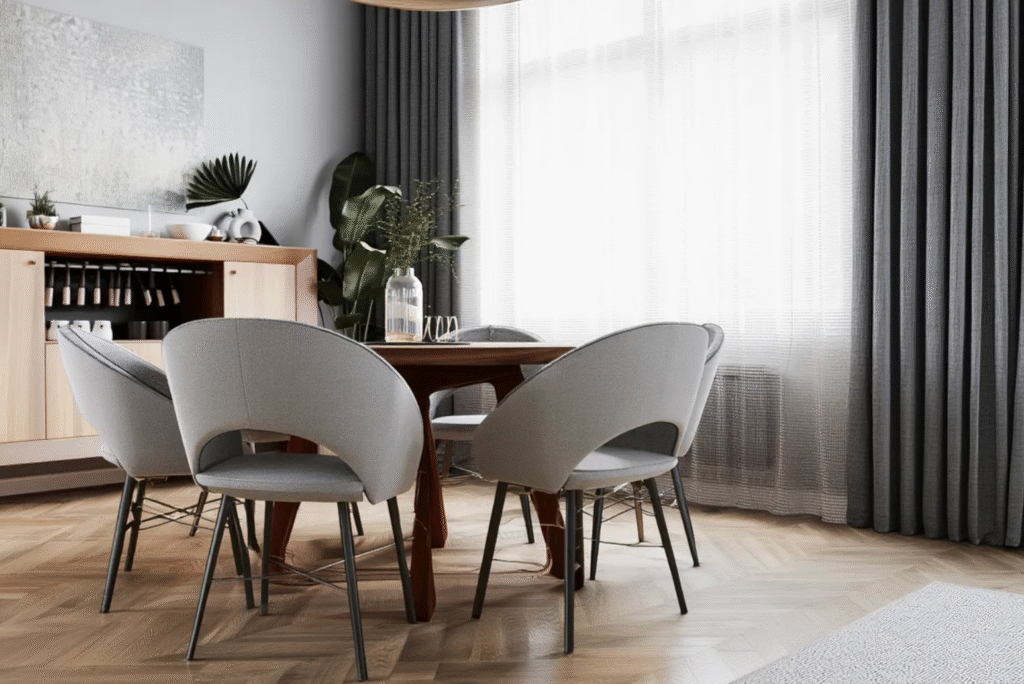
Ultra Mode works best with prompts that are accurate and detailed. Be clear about what needs to be done, what should change, and what should stay the same. Giving specific instructions helps Ultra Mode deliver the most precise and realistic results.
It’s also important to understand the role of Scenarios when building your prompts. Scenarios help set the overall context and mood of your render, making your output more consistent with your creative vision.
If Ultra Mode doesn’t give you the exact result you want, feel free to explore Render Mode or Edit Mode. Each mode offers different levels of control and flexibility, allowing you to fine-tune your design until it matches your expectations.
Final Thoughts
Ultra Mode is built for creators who care about precision, realism, and control. By understanding how prompts and camera views influence the outcome, you can create renders that not only look beautiful but also stay true to your design intent. Experiment freely, refine your prompts, and let mnml.ai help you turn your ideas into stunning visual results.