

The Extender (Aspect Ratio) tool allows you to change the aspect ratio of your design by intelligently extending its edges. It currently supports nine different size and ratio options, including square, portrait, landscape, vertical, and horizontal formats.
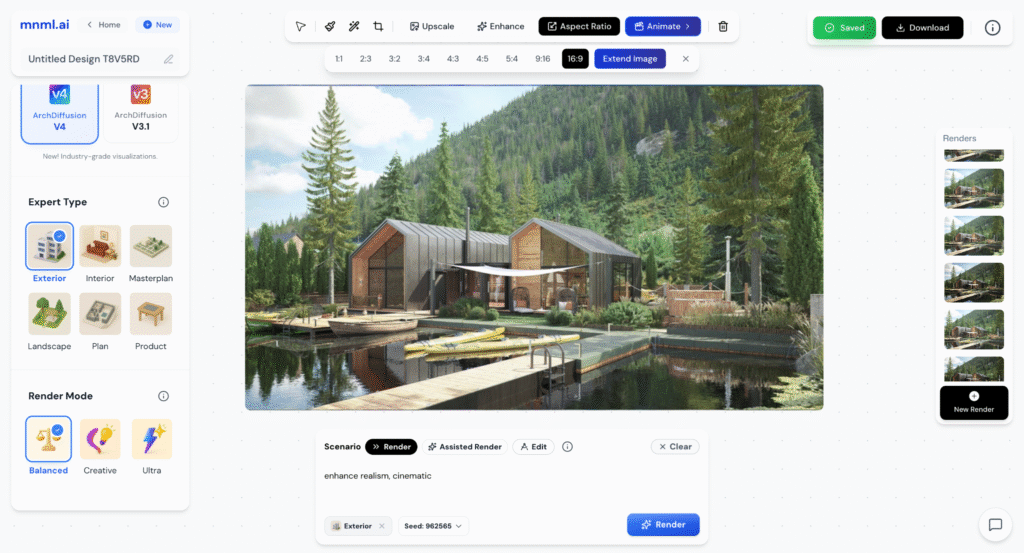
You can find this tool in the Power Tools section at the top center of the Studio interface.
In this guide, we’ll explore how to use the Extender tool and try different aspect ratios to see how they affect the overall composition of your design.
Attached here is our input image:

Extend Your Render
To extend your render using the Extender (Aspect Ratio) tool, follow these steps:
- Click the Aspect Ratio button located at the top corner of the Studio interface.
- Select your desired ratio or format from the available options (square, portrait, landscape, vertical, or horizontal).
- Click the Extend Image button to apply the new aspect ratio.
The tool will intelligently expand your design while maintaining visual consistency and composition.
Samples
Here are some samples using a single input image:
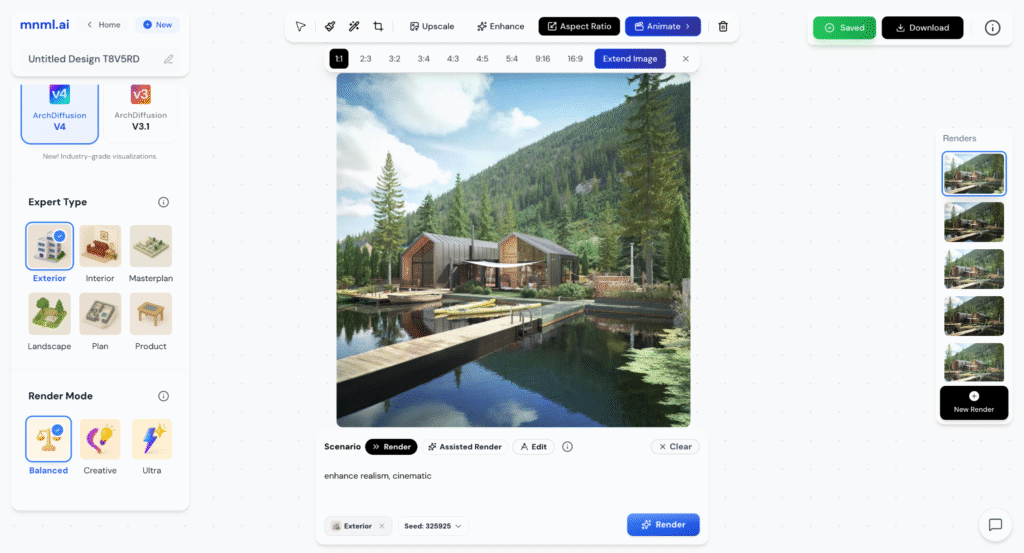
1. Square Format (1:1)
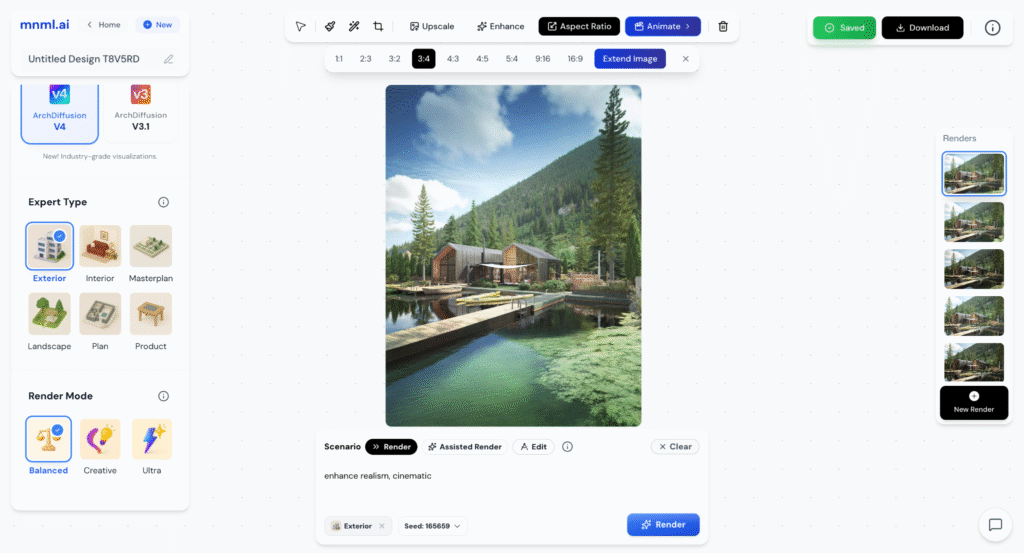
2. Portrait Format (3:4)
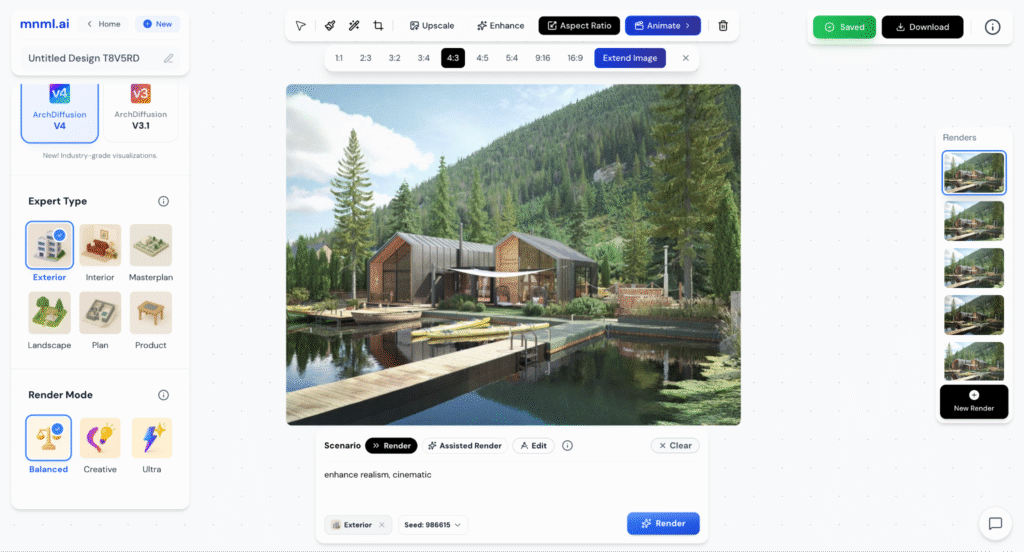
3. Landscape Format (4:3)
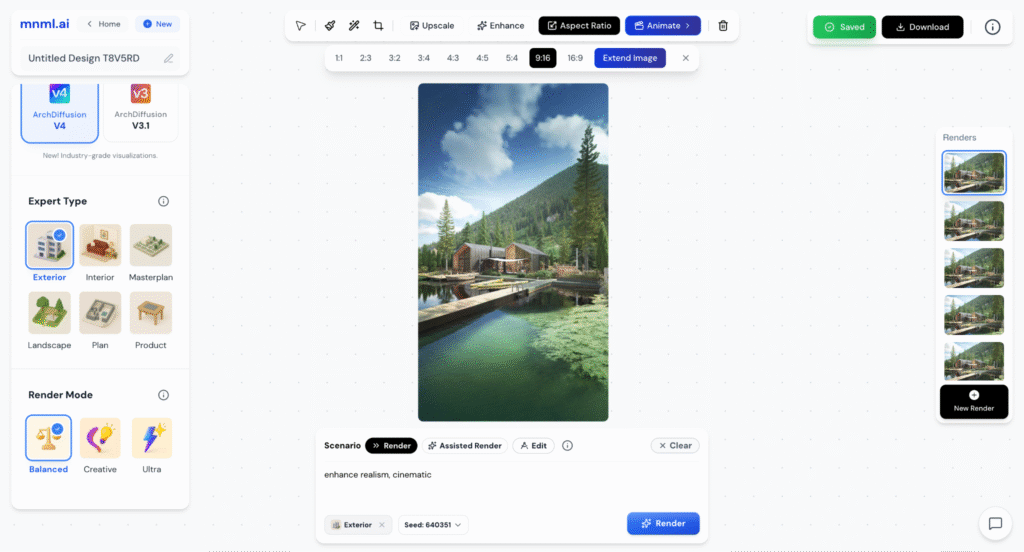
4. Vertical Format (9:16)
5. Horizontal Format (16:9)
Final Thoughts
The Extender (Aspect Ratio) tool is a quick and effective way to reframe your render for different formats without losing composition quality. Whether you need a square post, a wide landscape, or a vertical presentation, this tool adjusts your image intelligently to fit your needs. Experiment with different ratios to find the layout that best highlights your design while keeping it balanced and visually appealing.