
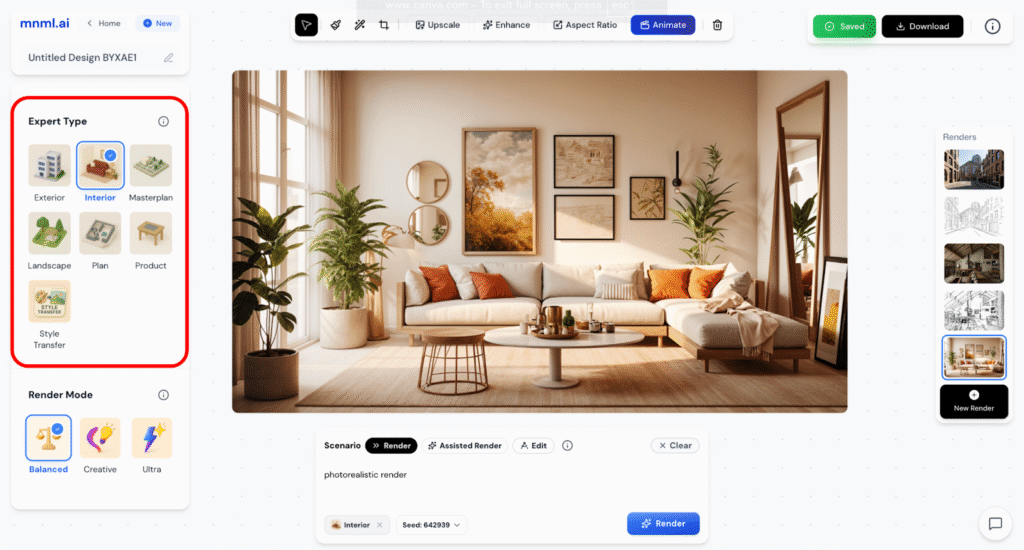
The Expert Type feature lets you choose a visualization expert tailored to your specific design task. Each expert is optimized to interpret prompts according to the needs of your project; helping you achieve more accurate and context-driven renders.
You can find the Expert Type panel on the main panel on the left side of the Studio interface. Selecting the right expert ensures that the AI focuses on the correct design logic, composition, and visual output for your workflow.
The Seven Visualization Experts
- Exterior – Best for outdoor architectural spaces and building facades.
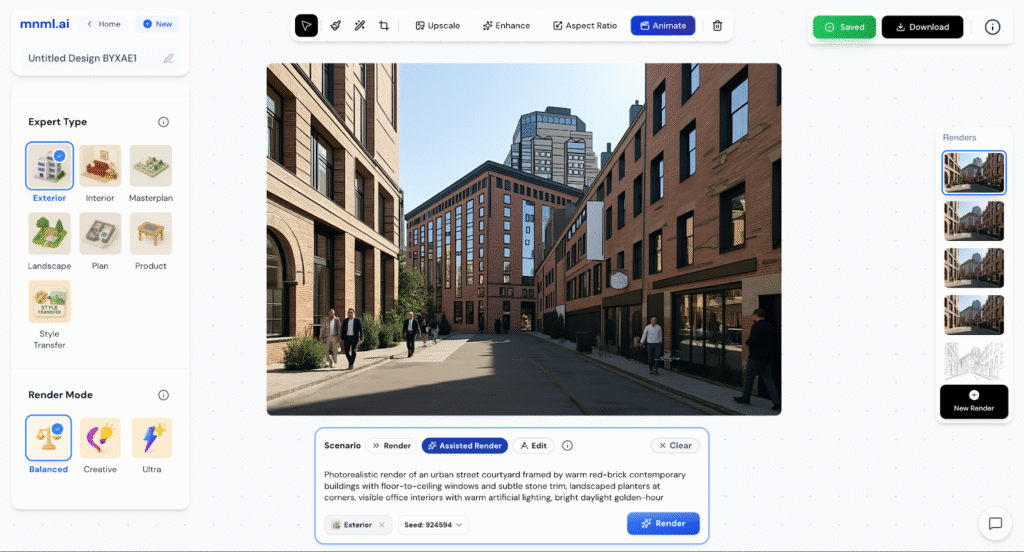
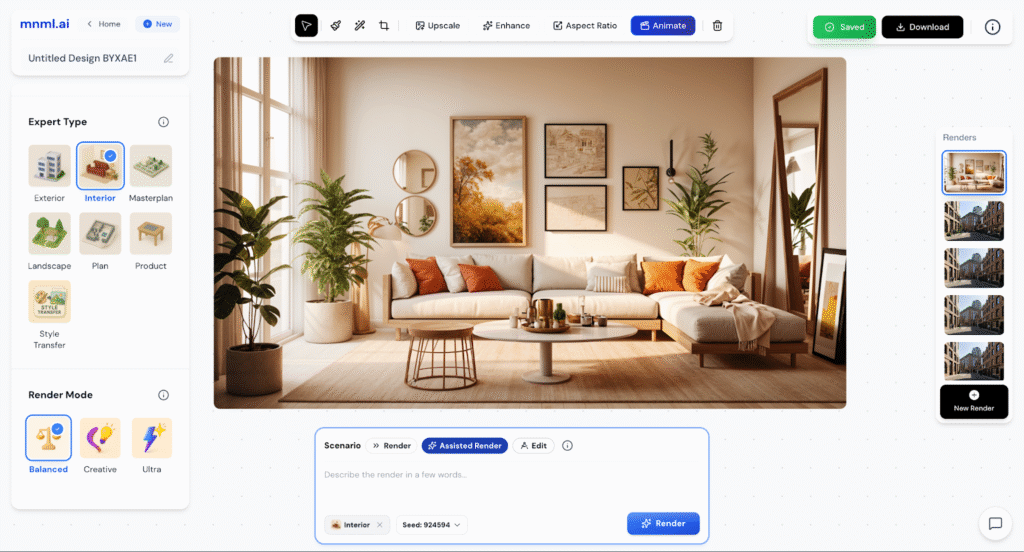
- Interior – Ideal for interior layouts, lighting, and material realism.
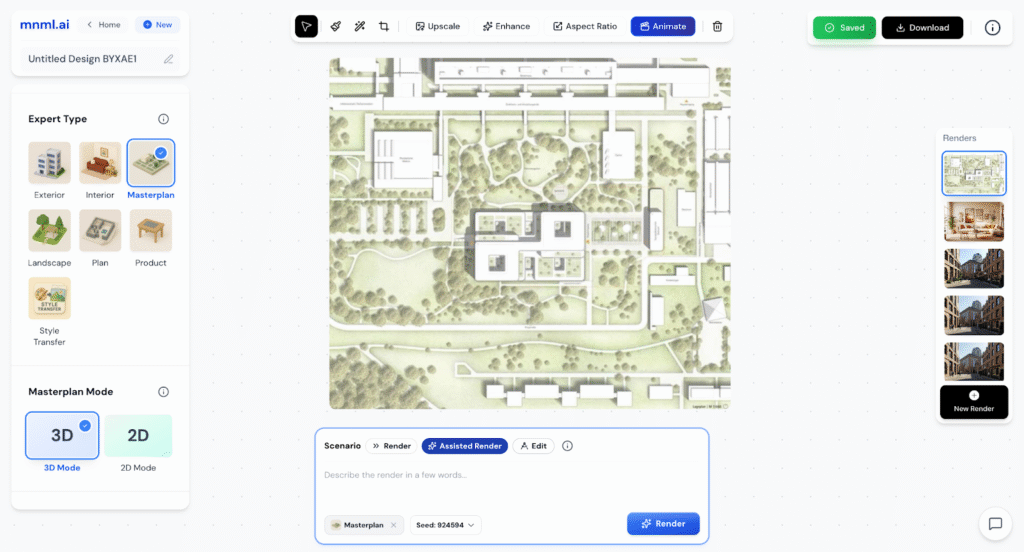
- Masterplan – For large-scale urban or site developments.
- Landscape – Focused on outdoor environments, gardens, and terrain visuals.
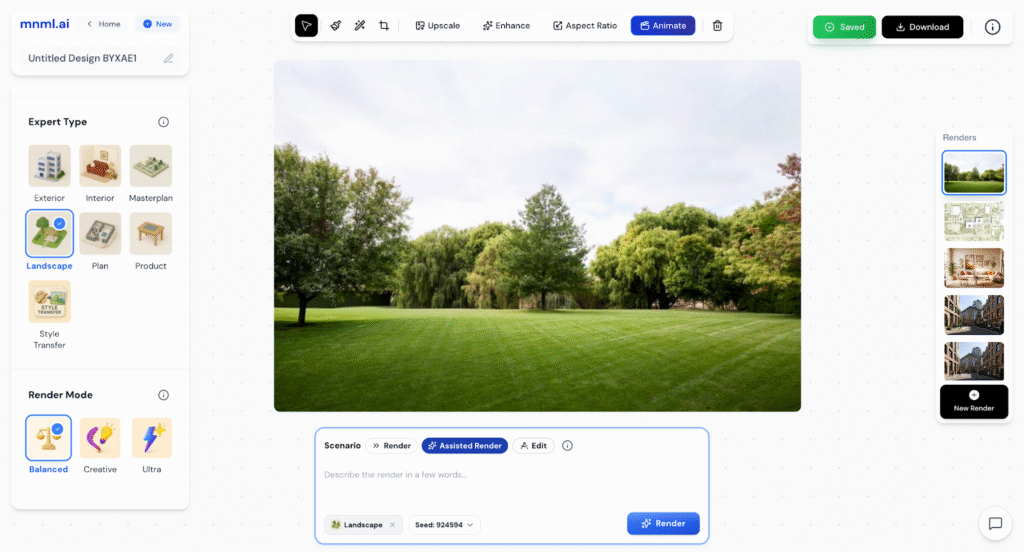
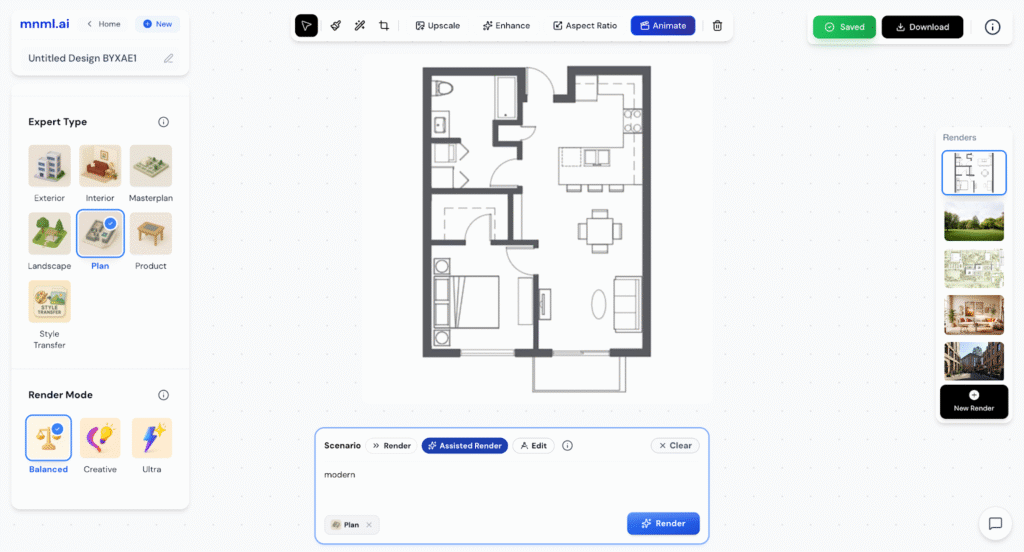
- Plan – Great for floor plans and architectural drawings.
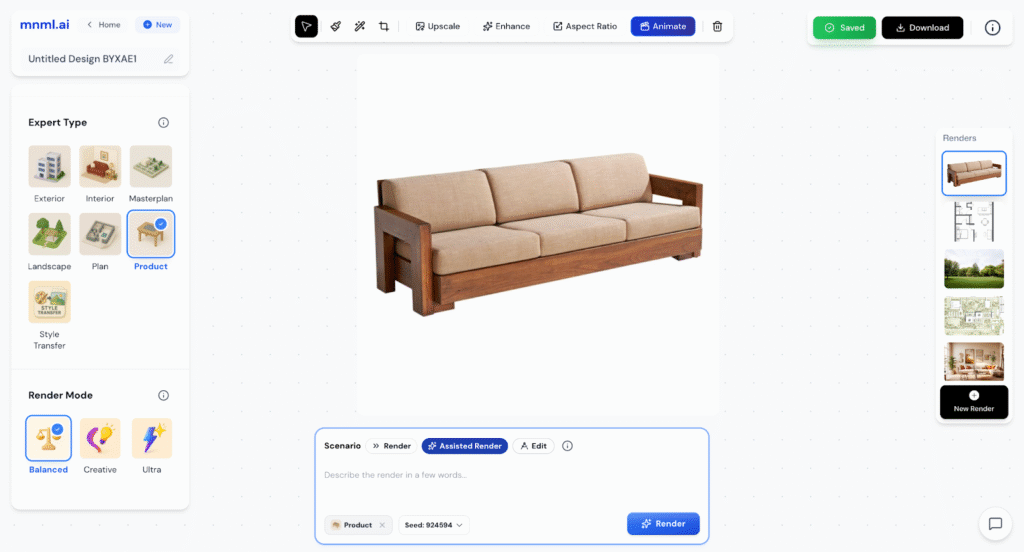
- Product – Designed for object and industrial design visualization.
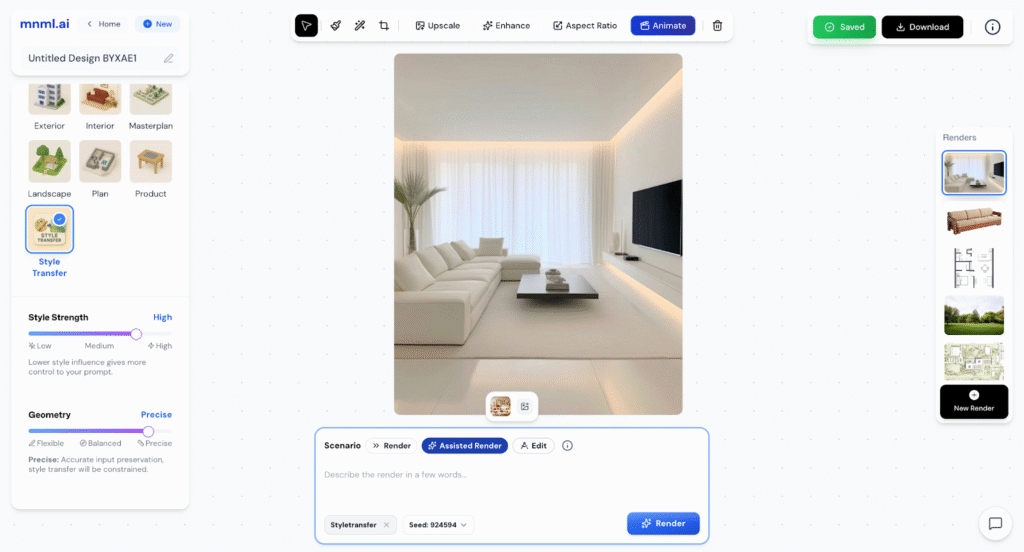
- Style Transfer – Applies a specific artistic or visual style to your design.
Each type helps you get the most accurate and visually cohesive results for your chosen project.
Final Takeaways
The Expert Type feature is key to getting precise, context-aware results in your renders. By choosing the right expert, you guide the AI to understand the intent and visual requirements of your project — whether it’s architectural, environmental, or product-focused.
Tips:
- Always select the expert type before rendering to ensure accurate interpretation of your prompt.
- For best results, combine the right Expert Type with the proper Render Mode (Balanced, Creative, or Ultra).
- If your design involves mixed elements (for example, a building with landscape), start with the dominant context — such as Exterior — then refine using the Edit or Inpaint tools.
Experiment with different Expert Types to see how each interprets your vision. Small changes in expert selection can lead to major improvements in realism, lighting, and overall design quality.