

Two tools. One purpose: better renders.
In mnml.ai, both 4K Upscale and Render Enhancer are designed to elevate your output.
However, they operate very differently.
This quick guide explains how each tool works, when to use them, and how to achieve the best possible results—efficiently.
Location: Easy Access in the Toolbar
No need to search.
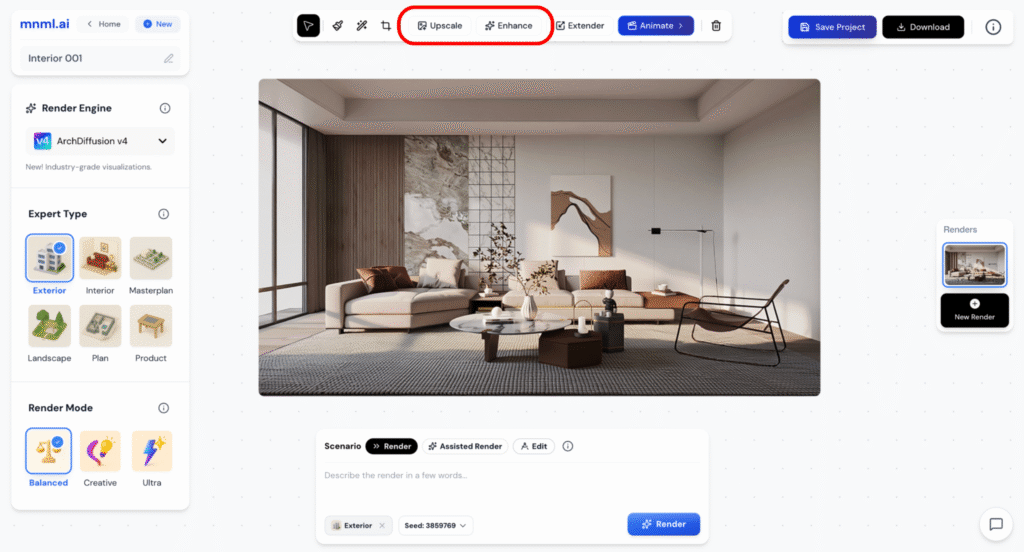
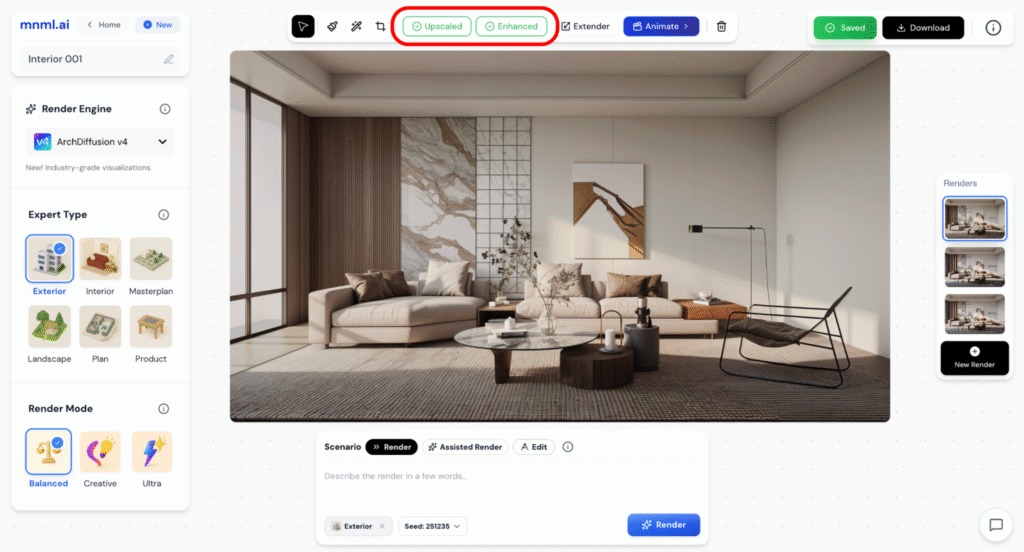
Both Enhance and Upscale are located directly above your rendered image; clearly visible in the top toolbar.
There are no hidden menus or extra steps.
Complete your render, choose your enhancement, and apply it with a single click.
4K Upscale = Higher Resolution, No Visual Change
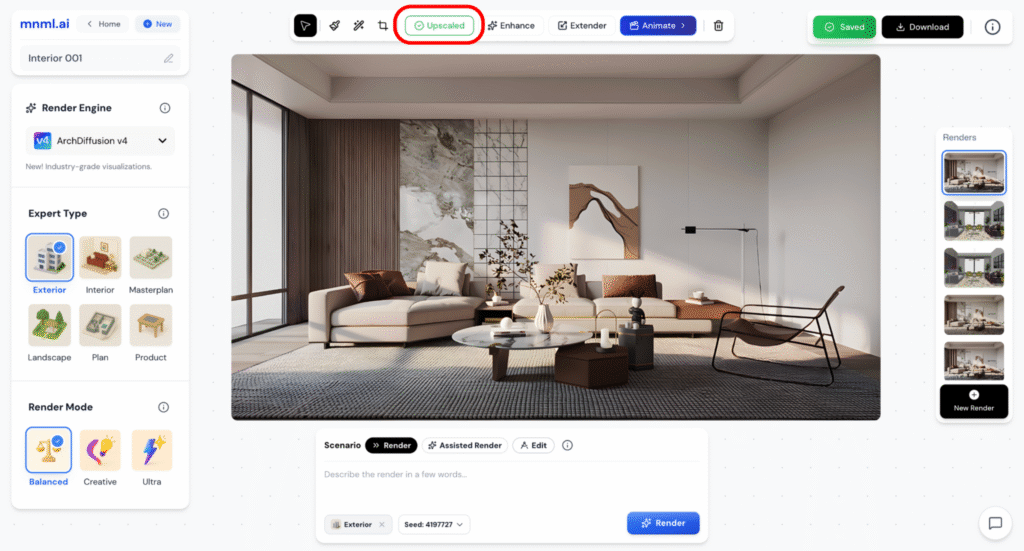
4K Upscale has one function: increase image resolution.
It maintains the original lighting, materials, and overall composition, simply adding more pixels.
Ideal when you need high-resolution output for printing, display, or export.
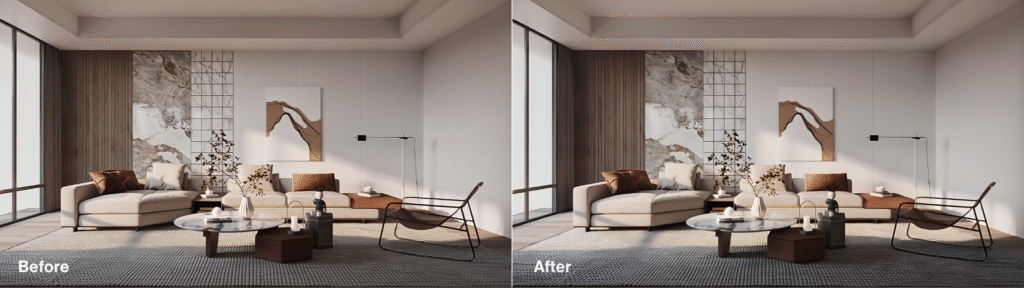
There is no change to realism, detail, or style. It’s the same render; just sharper.
Use this when you’re satisfied with the render and only need a higher-quality version.
Render Enhancer = Visual + Technical Upgrade
Render Enhancer goes beyond resolution. It actively improves your image.
Expect sharper textures, more refined lighting, and enhanced contrast.
Materials appear more defined, shadows fall naturally, and subtle details like edges and tones; are elevated.
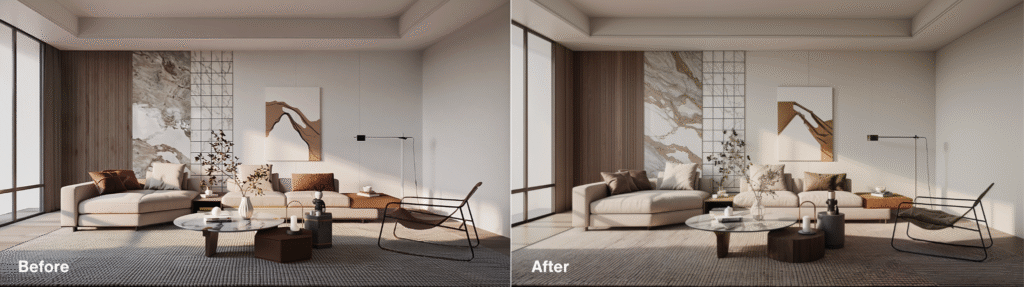
It also includes automatic upscaling, so you receive a high-resolution, presentation-ready image with one click.
No extra steps. No separate tools. Just a polished final result.
Can I Use 4K Upscale Before Rendering?
Absolutely, and it is recommended.
If your original image is low in resolution, applying 4K Upscale before rendering gives the engine more visual data to work with.
This leads to better material interpretation, sharper details, and a cleaner final result.
In short: starting with more gives you more.

Final Takeaways
- 4K Upscale = increased resolution, no visual enhancements
- Render Enhancer = improved lighting, texture, contrast + automatic upscaling
- For best results, begin with high-resolution inputs
- Use 4K Upscale for clarity; Render Enhancer for refinement
Choose based on your goal; and get the most out of every render.