
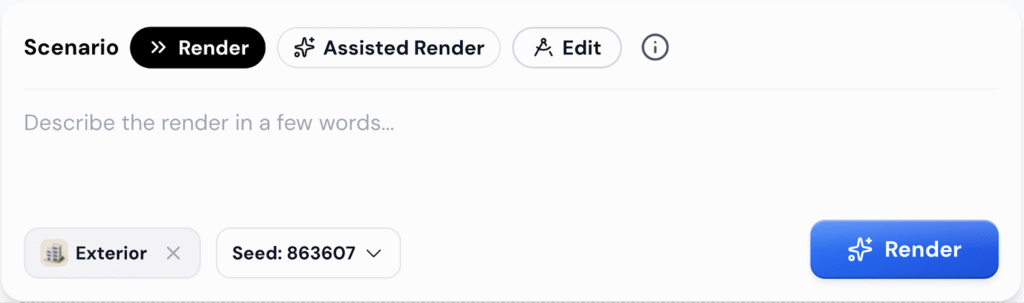
What is a Scenario?
You can find the Scenario option with the prompt box located at the bottom center of the Studio interface. A Scenario defines how your prompt influences the render output. It determines how the engine interprets your instructions when generating or editing an image.
There are three Scenario modes you can choose from:
- Render: Passes your prompt directly as it is.
- Assisted Render: AI automatically enhances your prompt to make it more descriptive for rich and detailed renders.
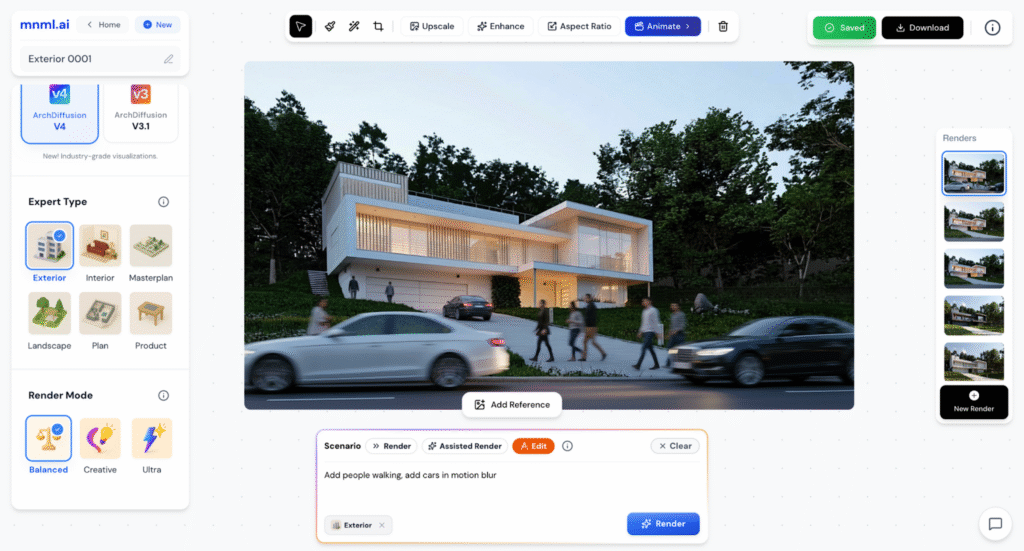
- Edit: Used for direct editing instructions such as add people, remove couch, or change lighting. Works best for localized or partial edits in the image.
Scenario Output Comparison
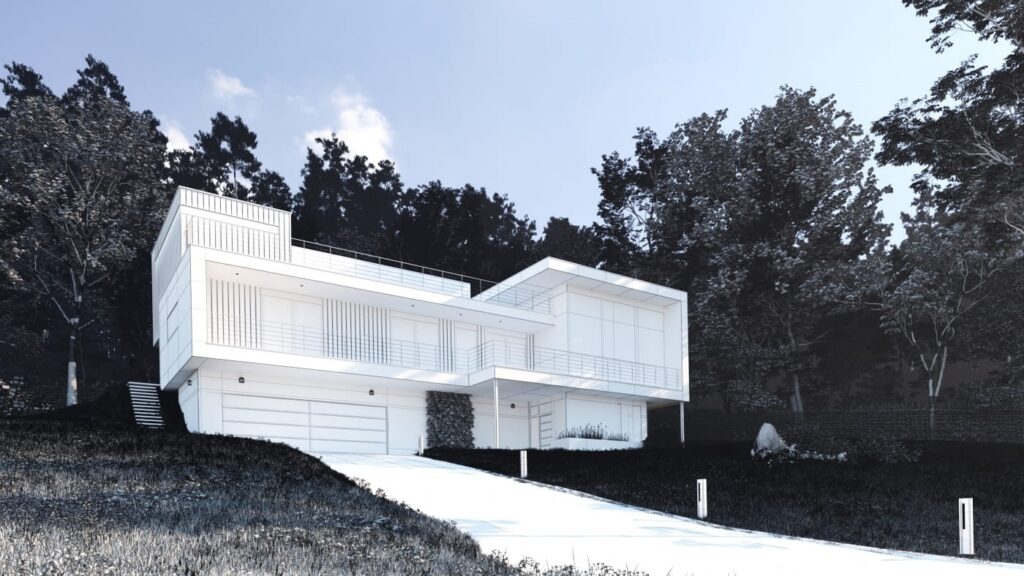
Let’s try each Scenario using the same input image and prompt. This will show how Render, Assisted Render, and Edit interpret the same instruction differently.
Attached below is the input image:
Render
Settings: Balanced Mode + Render Scenario
Prompt: Photorealistic render of a modern house
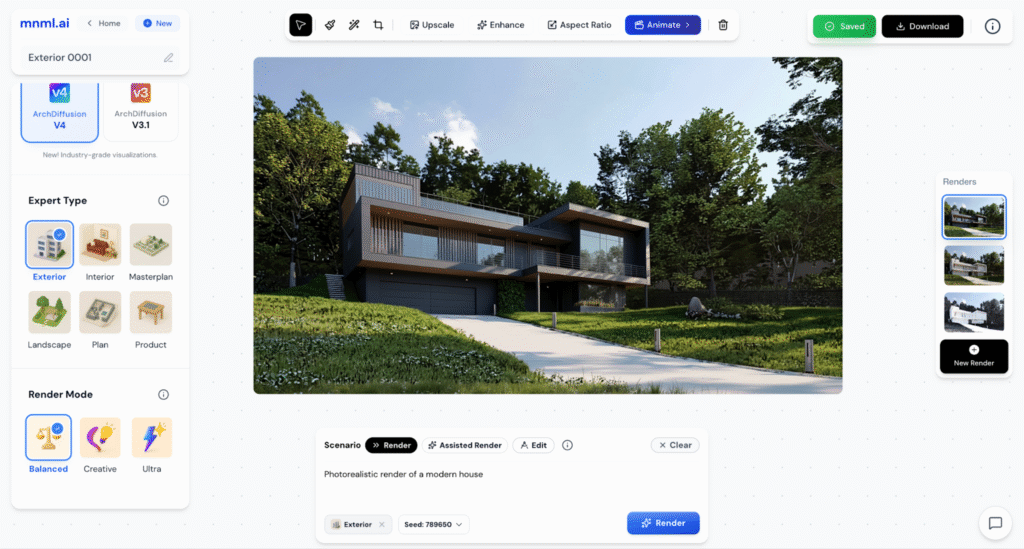
In the Render Scenario, the output follows your prompt exactly as written. It’s the most flexible option and works well when you want to explore different ideas or variations freely.
Assisted Render
Settings: Balanced Mode + Assisted Render Scenario
Prompt: Photorealistic render of a modern house modified to Photorealistic exterior rendering of a modern house, continuous floor-to-ceiling glazing balanced with white rendered walls and vertical timber slats, illuminated living areas and stair silhouettes visible through glazing, wooded hillside garden with terraced lawn and driveway, bright daylight, street-level perspective, soft reflections and subtle human presence
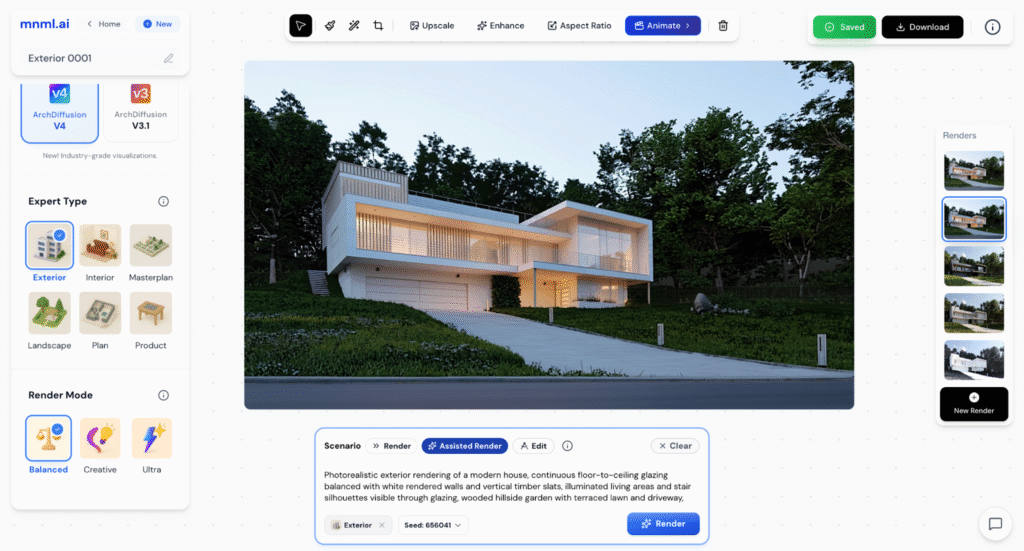
In the Assisted Render Scenario, the AI automatically enhances your prompt, adding descriptive details for richer and more polished results. It’s useful when you want to refine or expand your idea but aren’t sure how to phrase it.
Edit
Settings: Balanced Mode + Edit Scenario
Prompt: Add people walking, add cars in motion blur
Prompt: Remove the trees and change to mountains.
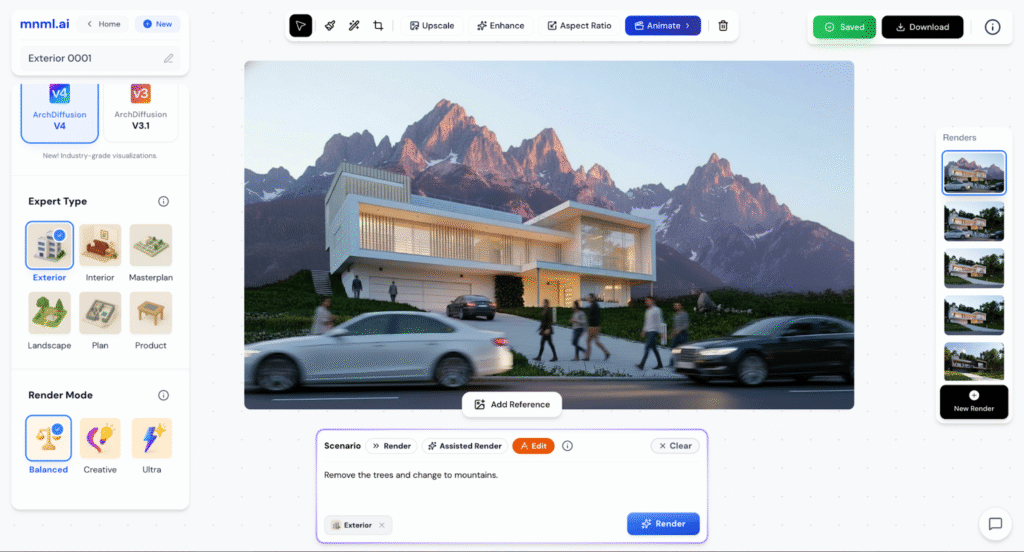
The Edit Scenario is best used after you’ve created your main render. It allows direct instructions like add people, remove couch, or change background. This mode is ideal for final touches or localized edits to your image.
Final Thoughts and Tips
Each Scenario offers a different level of control over your render.
- Render gives you full freedom to express your idea as it is.
- Assisted Render helps you expand and enrich your prompt effortlessly.
- Edit is perfect for refining and polishing your final image.
Choose the Scenario based on your workflow stage—start with Render or Assisted Render for concept creation, and use Edit for final adjustments. Always review your outputs and refine your prompts to get the most accurate and visually balanced results.