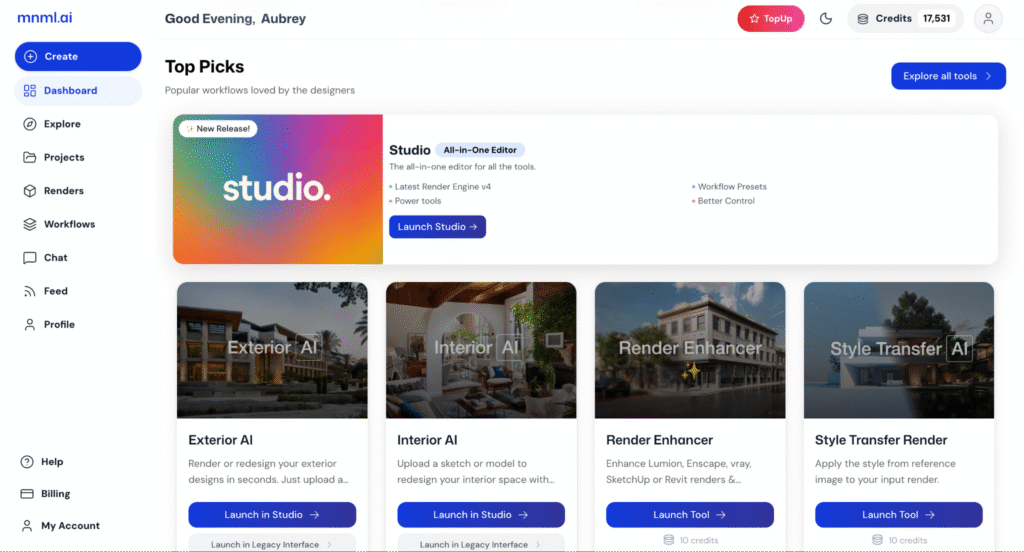
The new mnml.ai Dashboard is designed to be more direct, accessible, and easy to navigate. It gives you quick access to all your essential tools, projects, and features in one place.
In this quick guide, we’ll take a short tour of the Dashboard layout, highlighting each section and button so you can get familiar with the interface and start working more efficiently.
Logo
You’ll find the mnml.ai logo at the top left corner of the Dashboard.
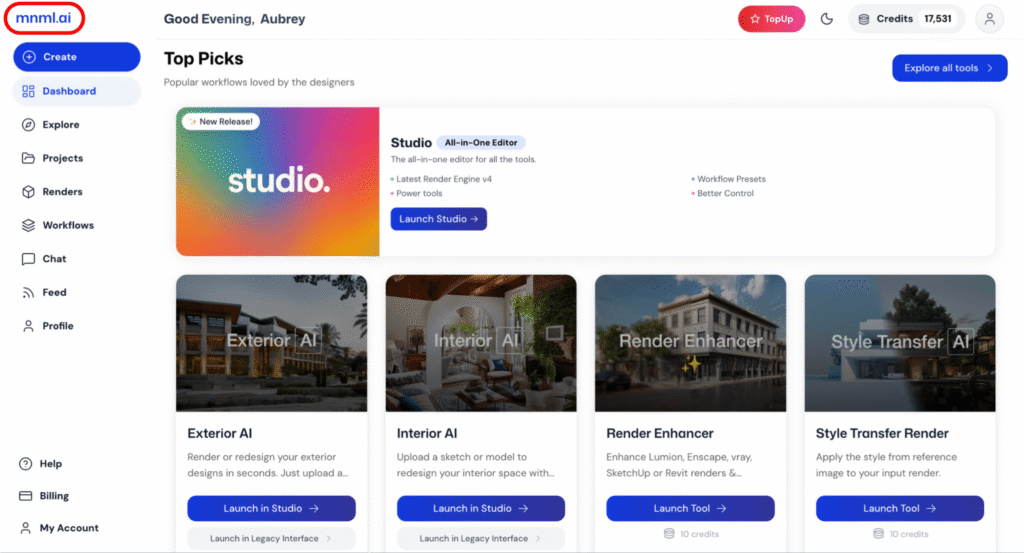
Clicking the logo will lead you to the home or landing page of mnml.ai, giving you a quick way to return to the main starting point of the platform.
Main Sections in the Dashboard
You can locate the main navigation panel on the top to middle left corner of the Dashboard interface. It gives you quick access to all key areas of mnml.ai.
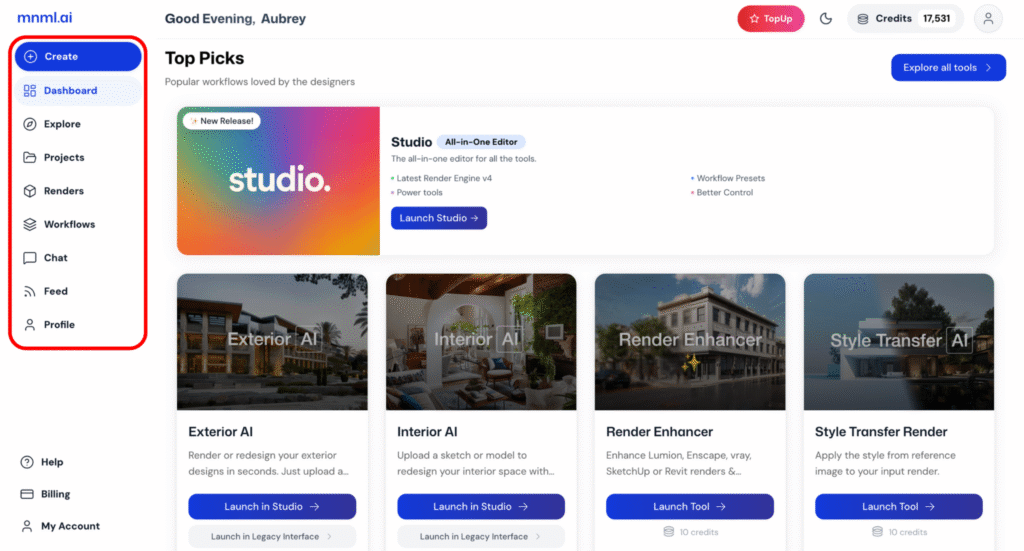
Create – Start a new project, pick a workflow, access legacy tools, or quickly open recent projects.
Dashboard – Your main hub for activity, projects, and quick shortcuts.
Explore – Check out the different tools available.
Projects – View and manage all your projects, including older ones through the “Legacy Projects” button.
Renders – Keep all your rendered images organized in one place.
Workflows – Discover AI render workflows made by the mnml.ai team and community.
Chat – Get instant help with your designs or edits.
Feed – See the latest AI renders and projects from the community.
Profile – Your personal space with your info, links, and creative works.
The main navigation panel keeps everything you need within reach. Its simple layout helps you move smoothly between sections and focus more on creating, not searching.
Top Bar Controls
Located at the top right corner of the Dashboard, these quick-access buttons help you manage your account and credits easily.
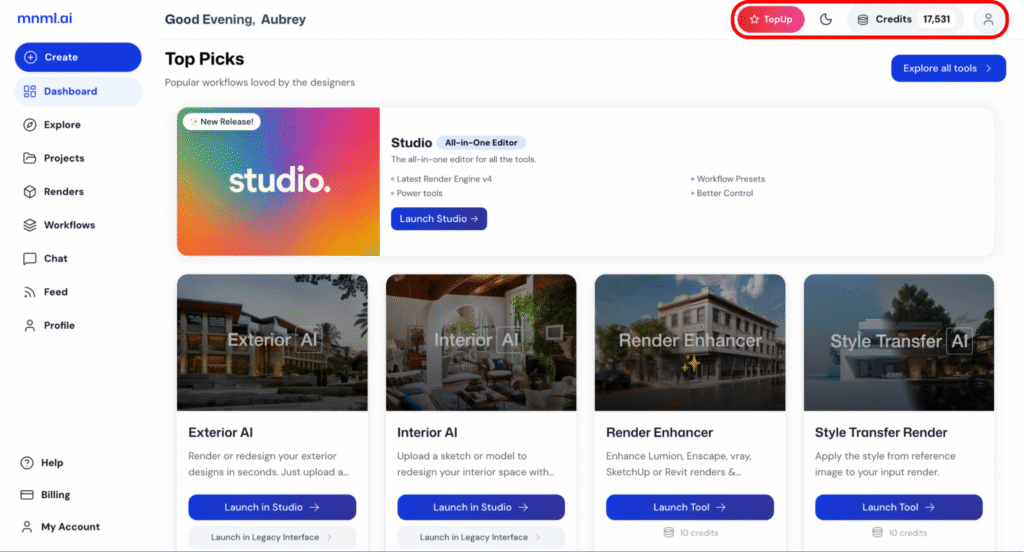
Top Up – Add more credits to your account for rendering and using Studio tools.
Theme Toggle – Switch between light and dark mode for your workspace.
Credits – Displays your available balance, so you always know how much you have left.
Profile Icon – Quick access to your personal account menu and settings.
Tip: Use the top bar controls often to stay on top of your workflow. Check your credits before long render sessions, adjust your workspace theme for comfort, and keep your profile updated for a smoother Studio experience.
Support and Account
You can find these options at the bottom left corner of the Dashboard. They give you quick access to support and account management.
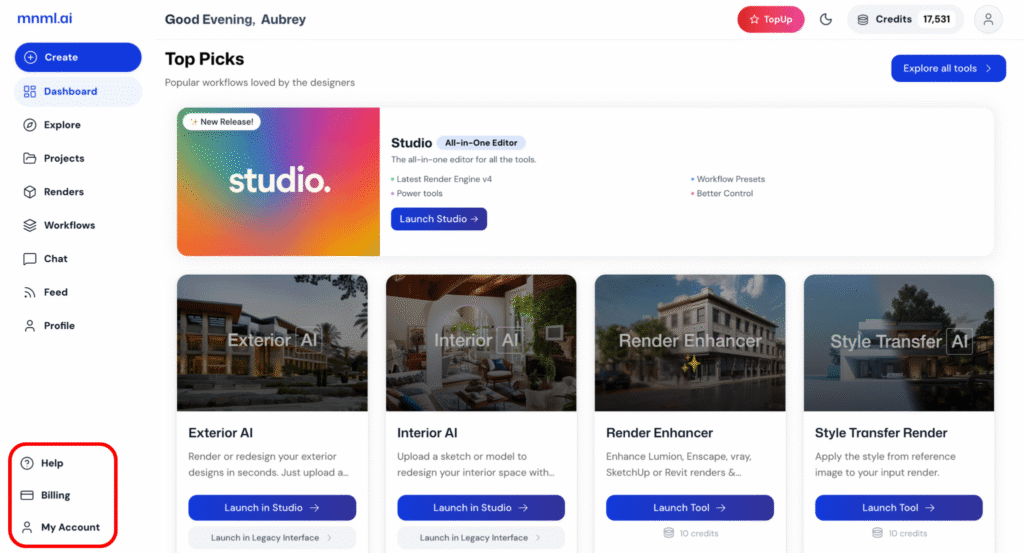
Help – Get assistance, access FAQs, or reach out for technical support.
Billing – View and manage your subscriptions, payments, and invoices.
My Account – Access and update your account details, preferences, and profile information.
This section is the place to go whenever you need assistance, want to check your subscription, or update your personal settings.
Main Dashboard Area
At the center of the Dashboard, you’ll find your recent projects and top tool picks for quick access.
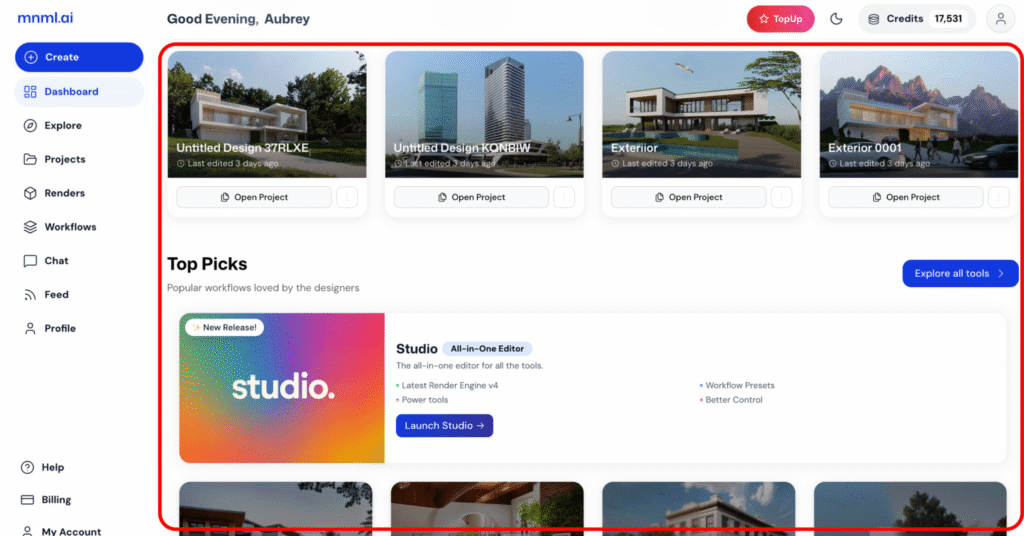
Recent Projects – Quickly open or continue your latest work without searching through folders. You can also start a new project easily using the accessible “New Project” button.
Top Tool Picks – A curated selection of your most-used and recommended tools, designed to help you jump right into creating with ease.
The main dashboard is designed to help you quickly navigate between ongoing projects and your favorite tools without unnecessary steps.
Final Thoughts
The mnml.ai Dashboard is designed for clarity and speed, making it easy to access everything you need in just a few clicks. Its layout keeps all tools, projects, and settings within reach—so whether you’re starting a new render, checking your credits, or managing projects, everything feels smooth and organized.
By understanding where each section is located, you can move through your workflow faster and stay focused on what matters most—creating.