
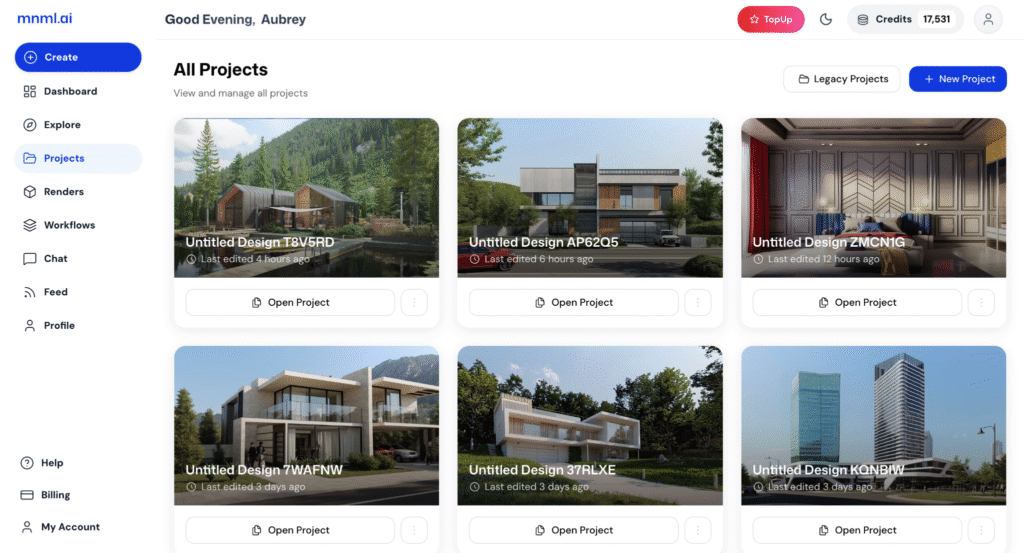
In this page, you can view and manage all your projects; both the ones created with legacy tools and those made in the new Studio.
This quick guide will walk you through the Projects page, showing you how to locate, organize, and access your work from both the new version and the legacy platform with ease.
All Projects
At the center of the Projects page, you can view all your saved and ongoing designs. Each project is displayed as a thumbnail preview with key details, including the project name and last edited time.
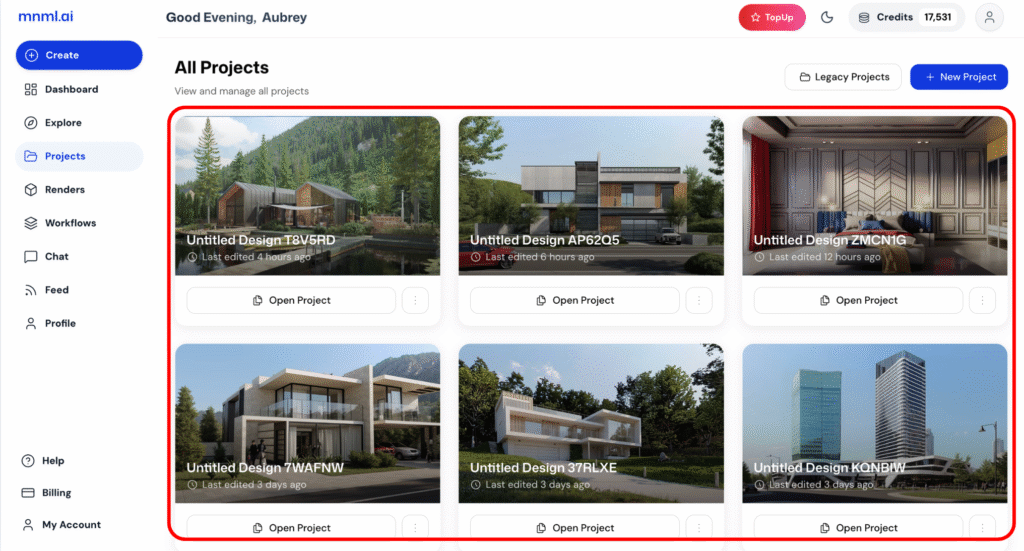
Open Project – Click this button to open and continue working on any selected project.
Project Card Options (⋯) – Access more actions like renaming or deleting a project.
This layout gives you a clear visual overview of your work, making it easy to browse, track progress, and manage multiple projects efficiently.
Legacy Projects and New Project
At the top right corner of the Projects page, you’ll find two key buttons that help you manage and create projects easily.
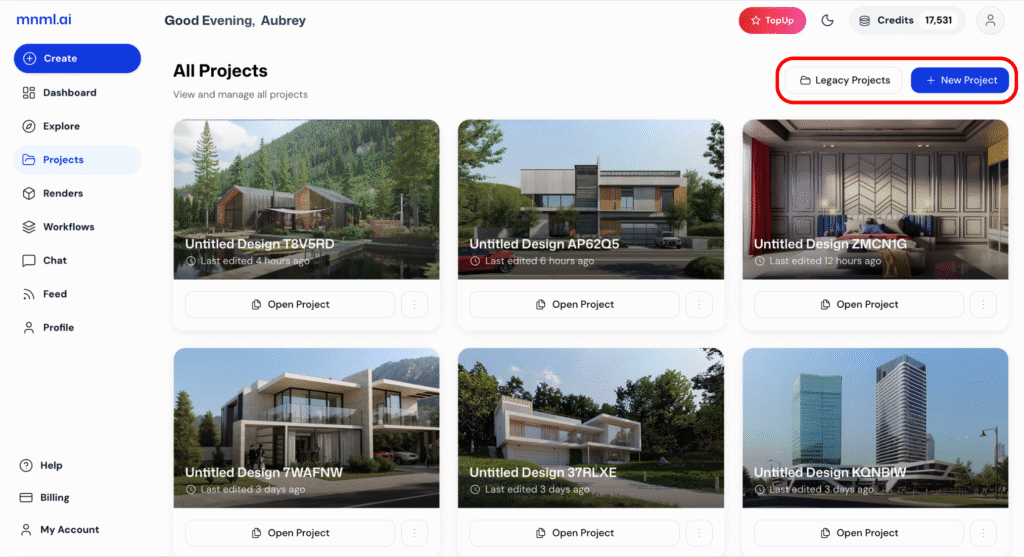
Legacy Projects – Access your older projects made with mnml.ai’s legacy tools. Opening this section will take you to the Render page, where you can organize your renders and group them into folders for better management.
New Project – Start a fresh project instantly.
These buttons make it easy to manage your workflow. Use Legacy Projects to revisit past work or New Project to start fresh and keep your creative process moving smoothly.
Final Thoughts
The Projects page keeps all your creative work organized and easy to access. Whether you’re continuing a recent design, starting something new, or revisiting older renders, everything is just a click away. With its clear layout and quick tools, managing your projects in mnml.ai is simple, efficient, and built to support your creative flow.