
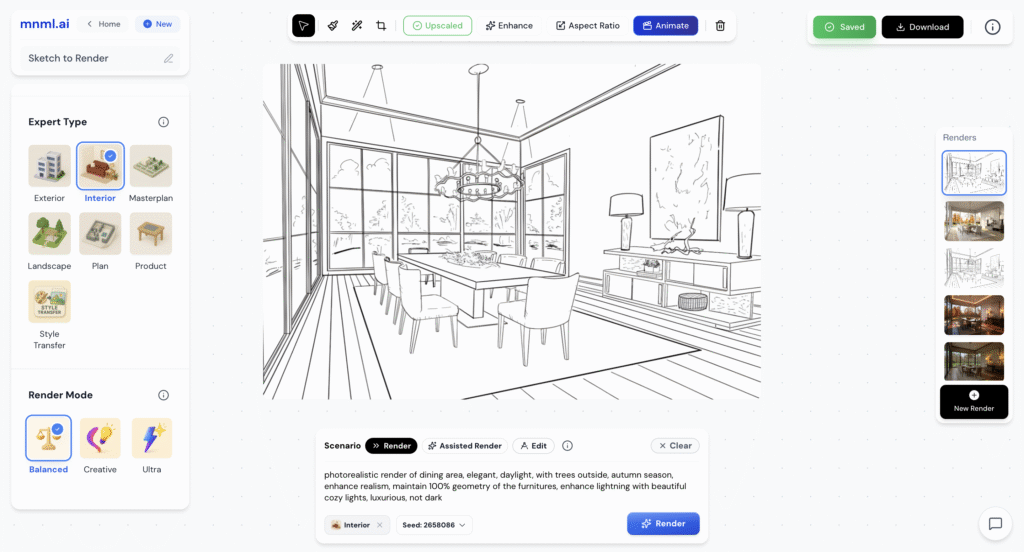
In this beginner’s guide, we’ll explore the best modes and scenarios to use for your Sketch to Render projects. This feature allows you to transform simple hand-drawn or digital sketches into realistic, fully rendered designs using mnml.ai’s rendering engine.
You’ll learn how to choose the right Render Mode and Scenario to get accurate and visually appealing results; from basic outlines to professional-quality visualizations.
By the end of this guide, you’ll understand how to bring your ideas to life starting from just a sketch.
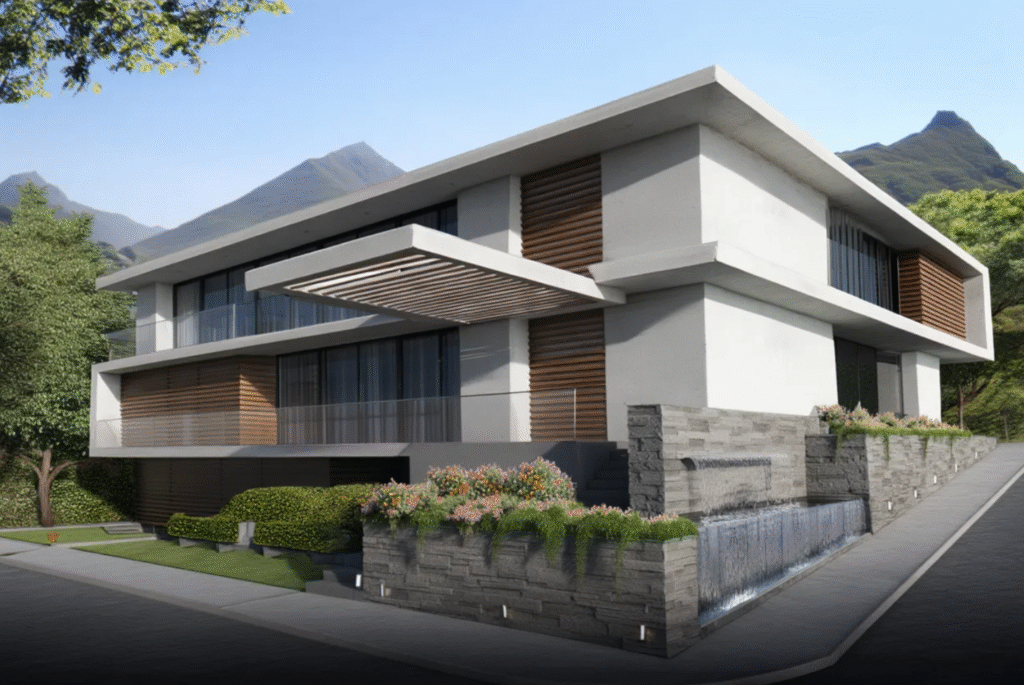
Render Scenario Comparison (Exterior)
Input Image:
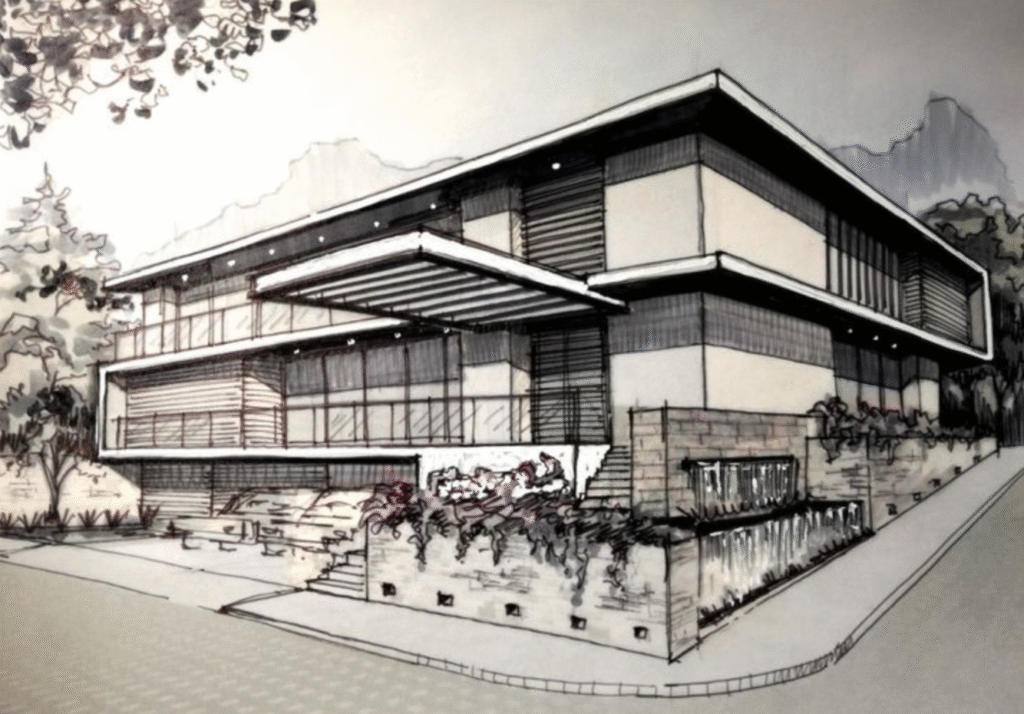
1. Balanced Mode + Render Scenario
Prompt: A photorealistic modern beautiful house, modern style, elegant, spring season, add mountains, daylight, maintain 100% house geometry of the original image.
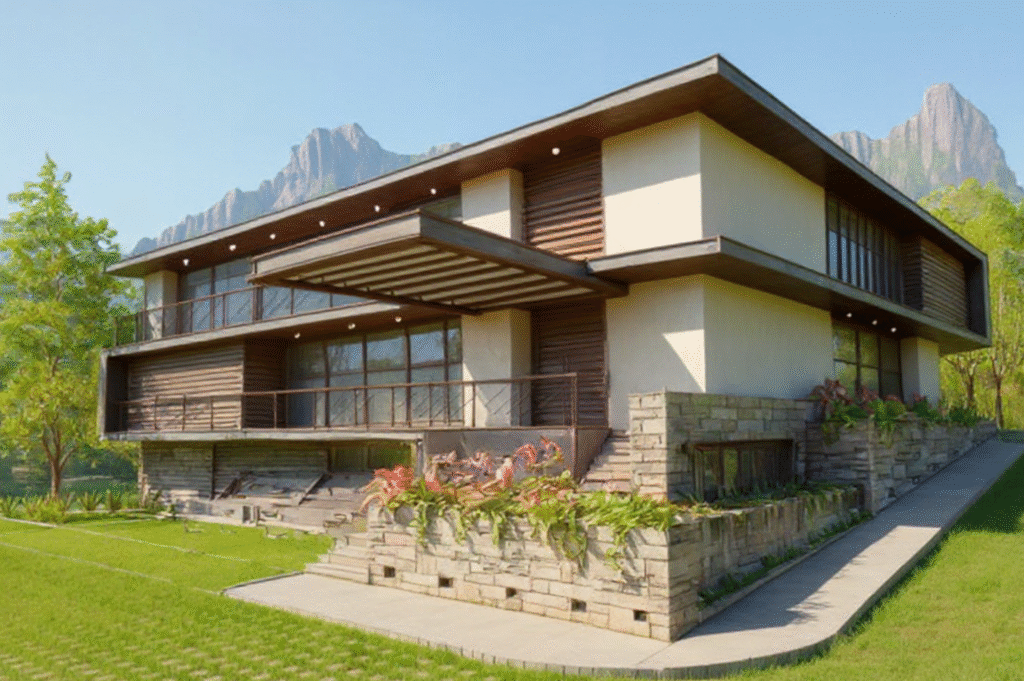
2. Creative Mode + Render Scenario
Prompt: A photorealistic modern beautiful house, modern style, elegant, spring season, add mountains, daylight, maintain 100% house geometry of the original image.
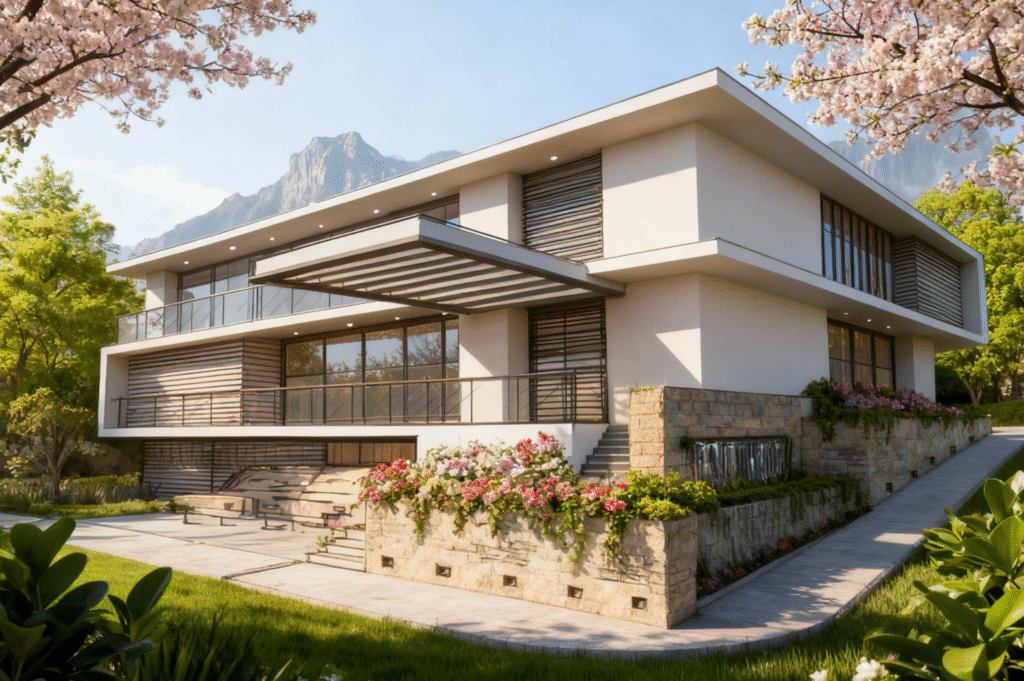
3. Ultra Mode + Render Scenario
Prompt: A photorealistic modern beautiful house, modern style, elegant, spring season, add mountains, daylight, maintain 100% house geometry of the original image.
Render Scenario Comparison (Interior)
Input Image:
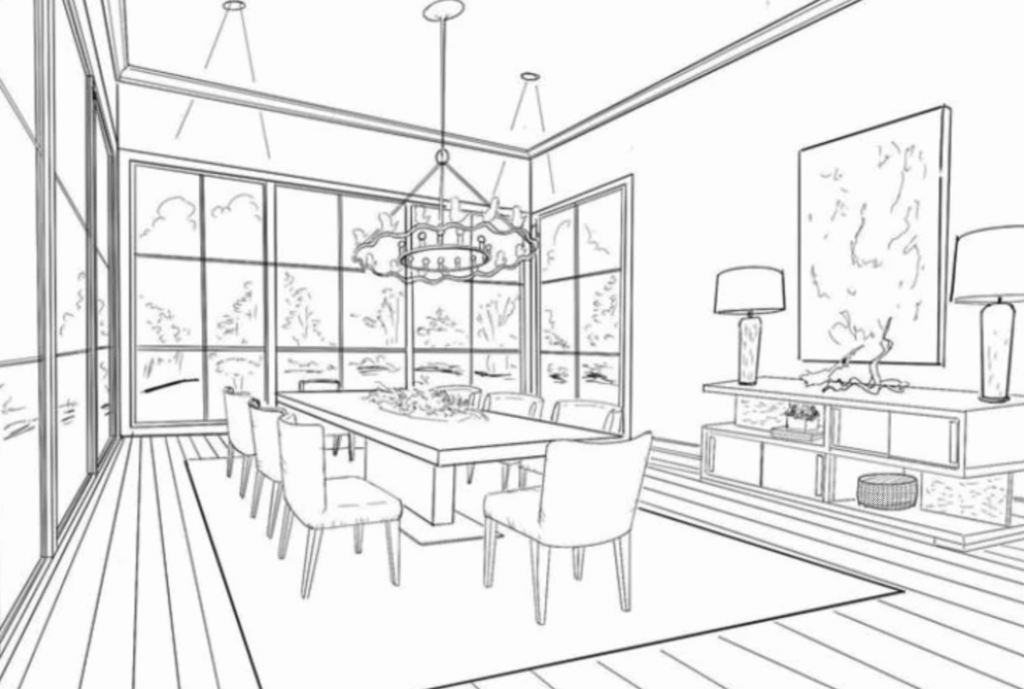
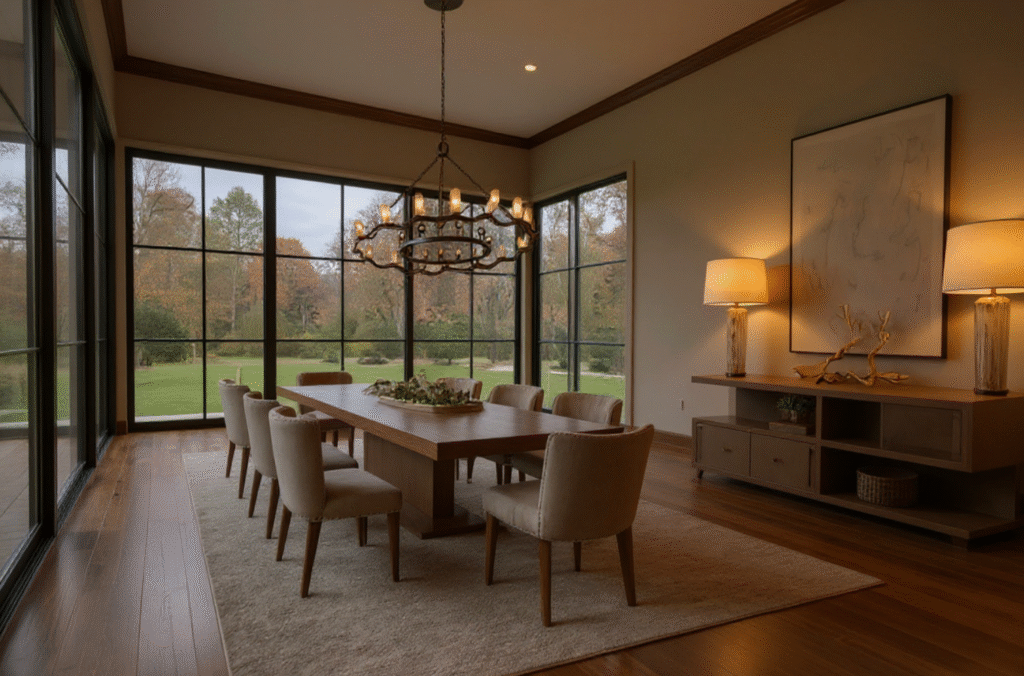
1. Balanced Mode + Render Scenario
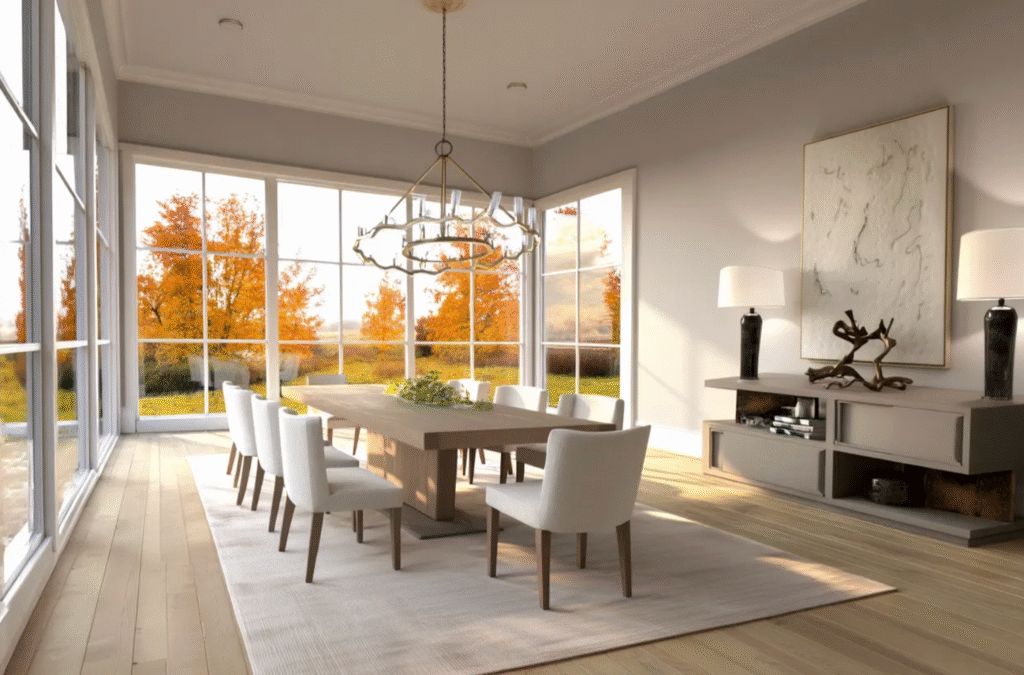
Prompt: photorealistic render of dining area, elegant, daylight, with trees outside, autumn season, enhance realism, maintain 100% geometry of the furnitures, enhance lightning with beautiful cozy lights, luxurious, not dark
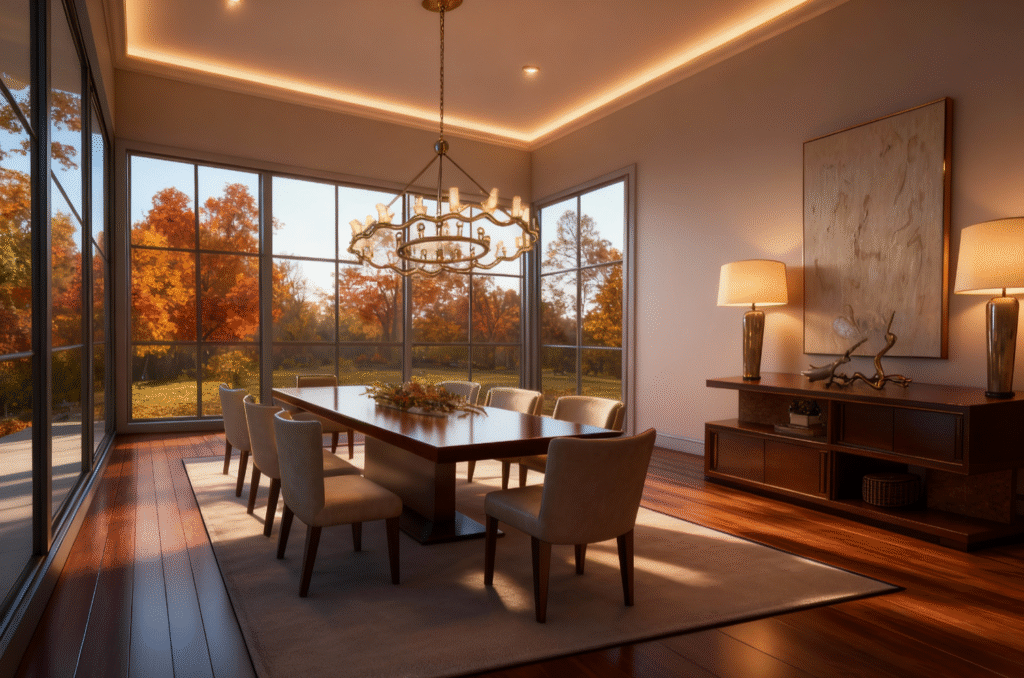
2. Creative Mode + Render Scenario
Prompt: photorealistic render of dining area, elegant, daylight, with trees outside, autumn season, enhance realism, maintain 100% geometry of the furnitures, enhance lightning with beautiful cozy lights, luxurious, not dark
1. Ultra Mode + Render Scenario
Prompt: photorealistic render of dining area, elegant, daylight, with trees outside, autumn season, enhance realism, maintain 100% geometry of the furnitures, enhance lightning with beautiful cozy lights, luxurious, not dark
Final Takeaways
When working with Sketch to Render, the key to success is finding the right balance between render mode and prompt detail.
- Balanced Mode and Creative Mode generally produce the best results for sketches.
- Balanced Mode keeps your design geometry accurate and delivers realistic detail.
- Creative Mode allows the AI to interpret your sketch more freely, ideal for concept exploration and stylistic variety.
- Balanced Mode keeps your design geometry accurate and delivers realistic detail.
- Ultra Mode can add impressive detail, but it may alter the composition slightly — best reserved for final refinements rather than initial renderings.
Always write clear and detailed prompts that describe materials, lighting, atmosphere, and style. The more specific your description, the closer the output will align with your design intent.