
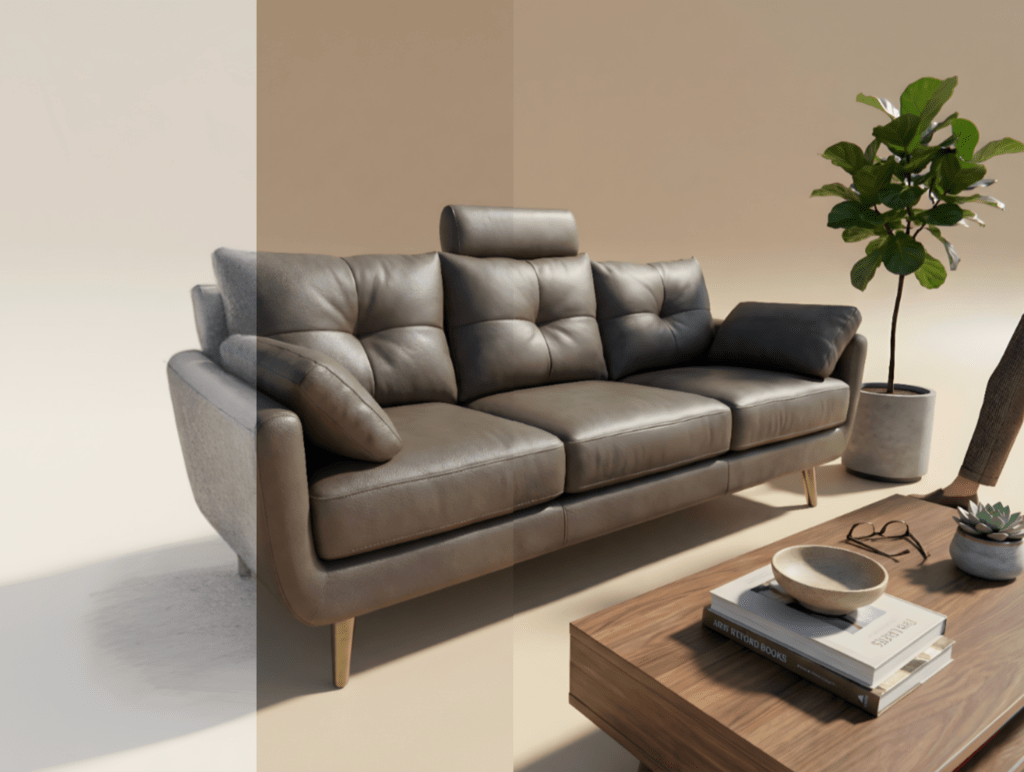
In this guide, we’ll walk you through how to use Product AI with the ArchDiffusion v4.1 engine which is perfect for polishing or presenting your products. You’ll get a friendly tour of the updated interface, learn what’s new in the latest version, and see simple sample parameters you can start using right away. Whether you’re experimenting or refining a concept, this guide helps you get great results fast. Let’s get started.
Interface Walkthrough
You’ll find the v4.1 engine listed alongside other engines in the top-left corner of the interface. This is where you select the version you want to work with.
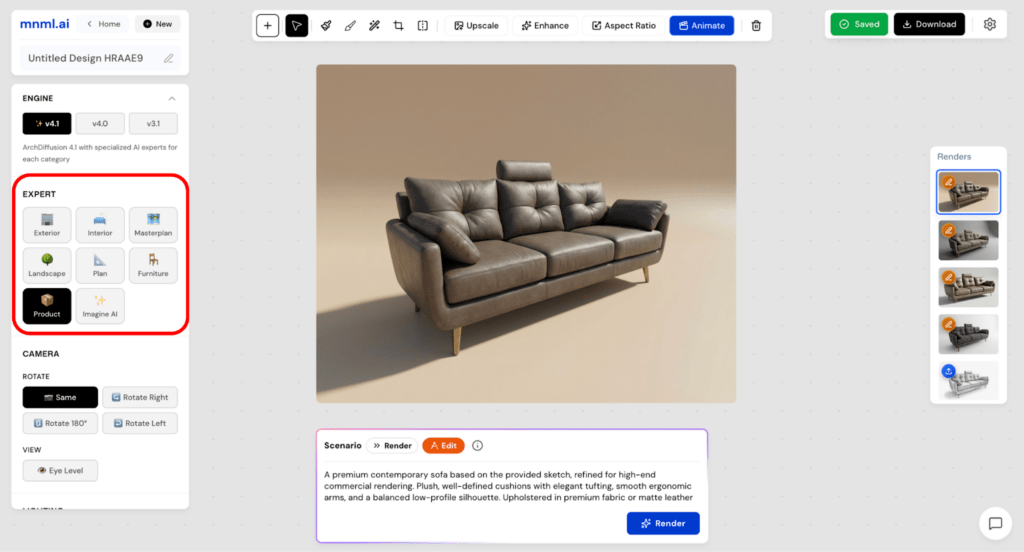
Next up is the Expert section. Here, you can define your project type, such as Interior, Exterior, or Product. Choosing the correct project type helps the engine better understand your goals and deliver more accurate, relevant results.
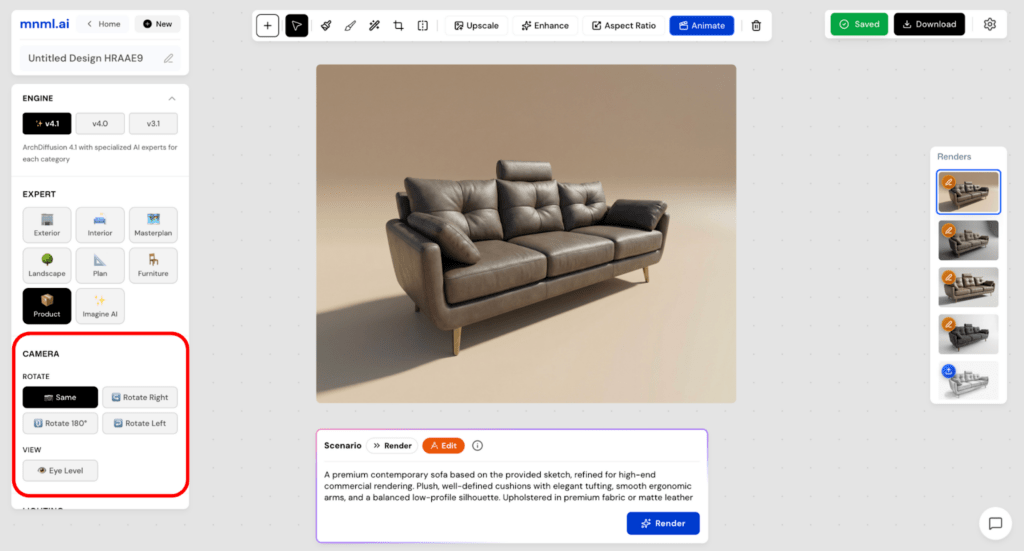
Below that is the Camera section, which includes two settings: Rotate and View. These options let you control the angle and perspective of your image. You can stick with the original view or switch to alternatives like eye level view, depending on how you want to present your design.
The Lighting section comes next. This setting allows you to define the overall mood of your render based on the time of day. At the moment, Daylight is the only available option.
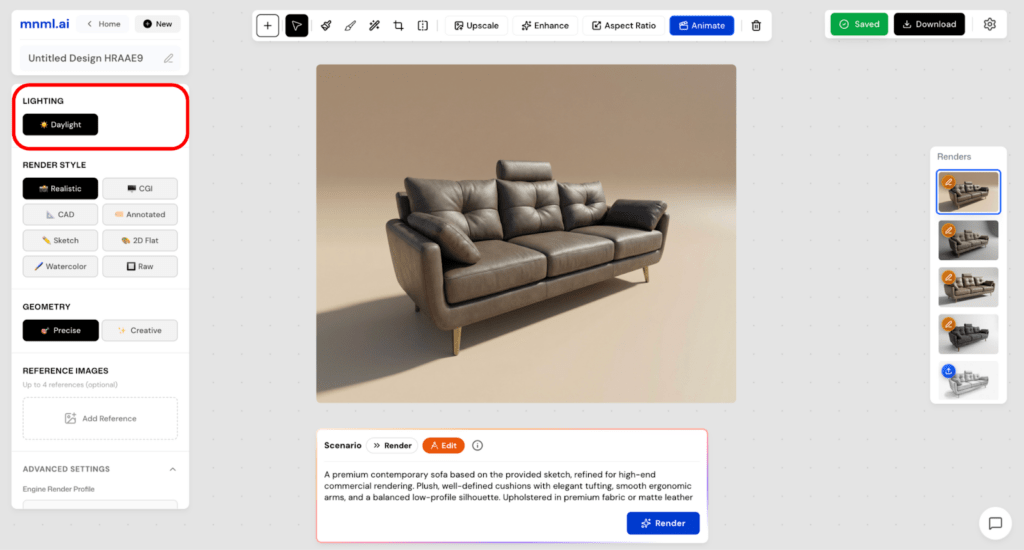
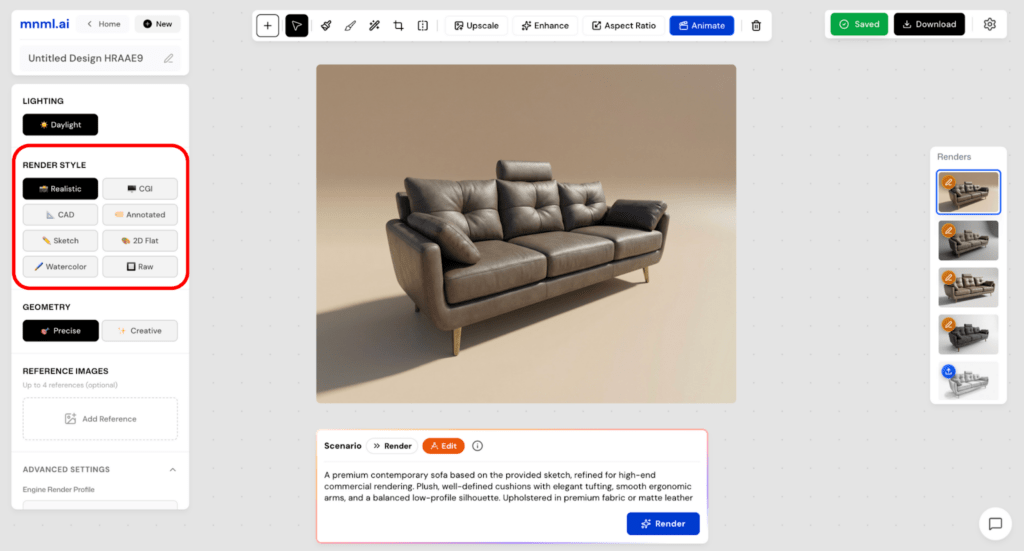
After lighting, move on to Render Style. This determines the overall look and feel of your output. While Realistic is the most commonly used style, you can also experiment with options like CGI or Sketch to suit different presentation needs.
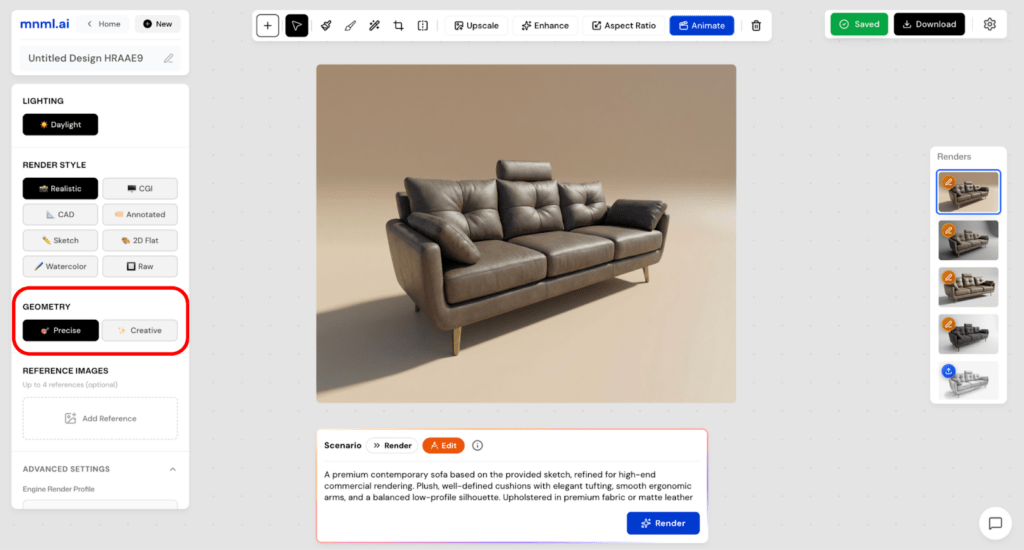
Next is Geometry, which plays a major role in shaping your final result:
- Choose Precise to maintain accurate geometry.
- Select Creative for a more flexible and expressive interpretation.
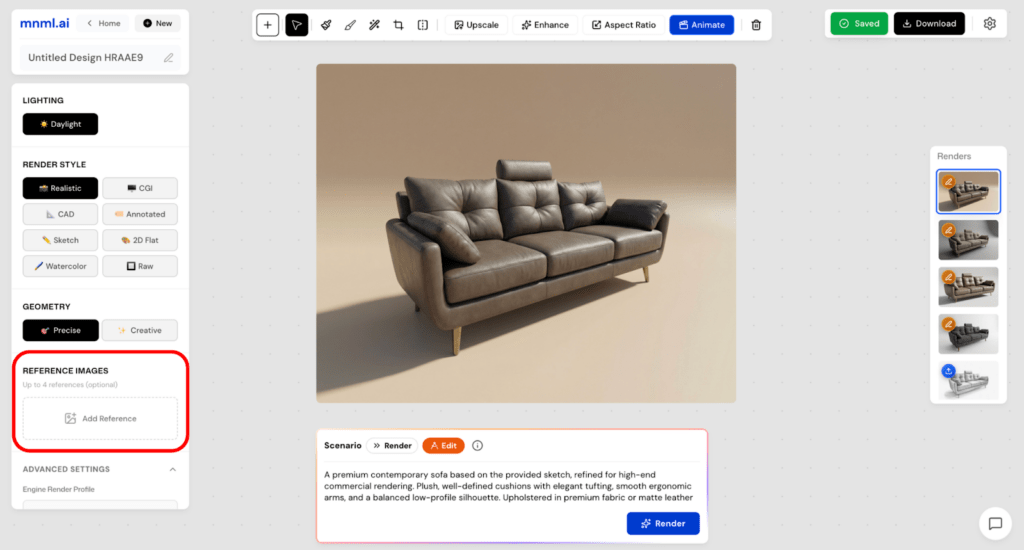
After that, you’ll find Reference Images. This feature helps guide the AI toward a specific look or style. You can upload up to four reference images to improve consistency and better align the output with your vision.
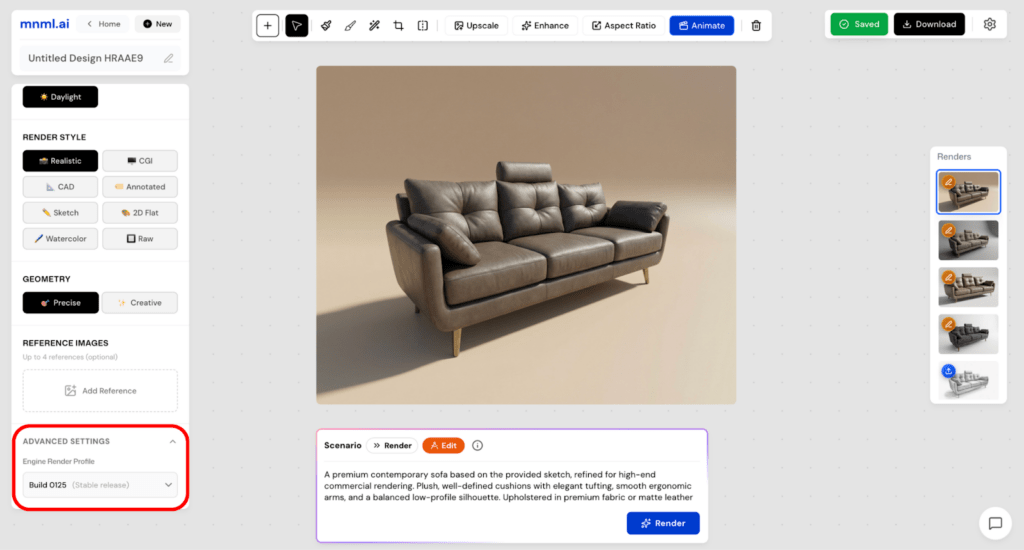
At the bottom, you will find Advance Settings where you can find Engine Render Profile options: Build 0125 (Stable release) and Build 0225 (Latest release). This will determine how your design will be generated. We suggest using Build 0125 for a more reliable one.
To finish setting up, head to the prompt box and select a Scenario. Choose Render for a more controlled and accurate result, or Edit if you’d like more creative freedom.
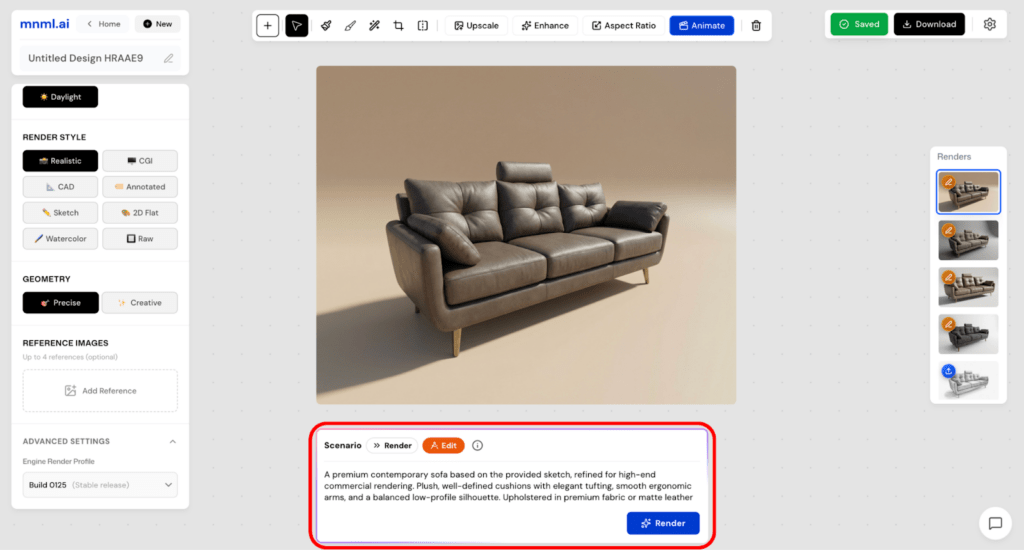
Once everything is ready, simply click Render and wait a few seconds to see your design come to life.
Sample Workflows
Now, let’s take a look at some sample product design parameters you can try right away.
Sample 1
Engine: v4.1
Expert: Product
Camera: Same
Lighting: Daylight
Render Style: Realistic
Geometry: Precise
Prompt Scenario: Render
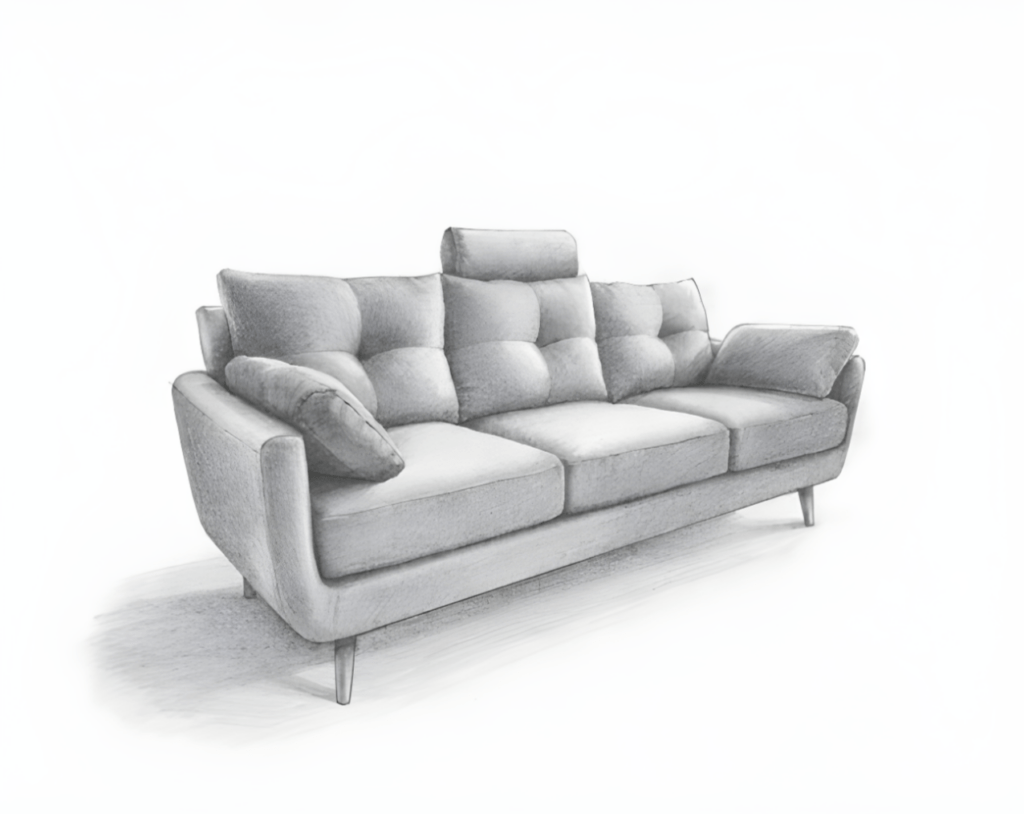
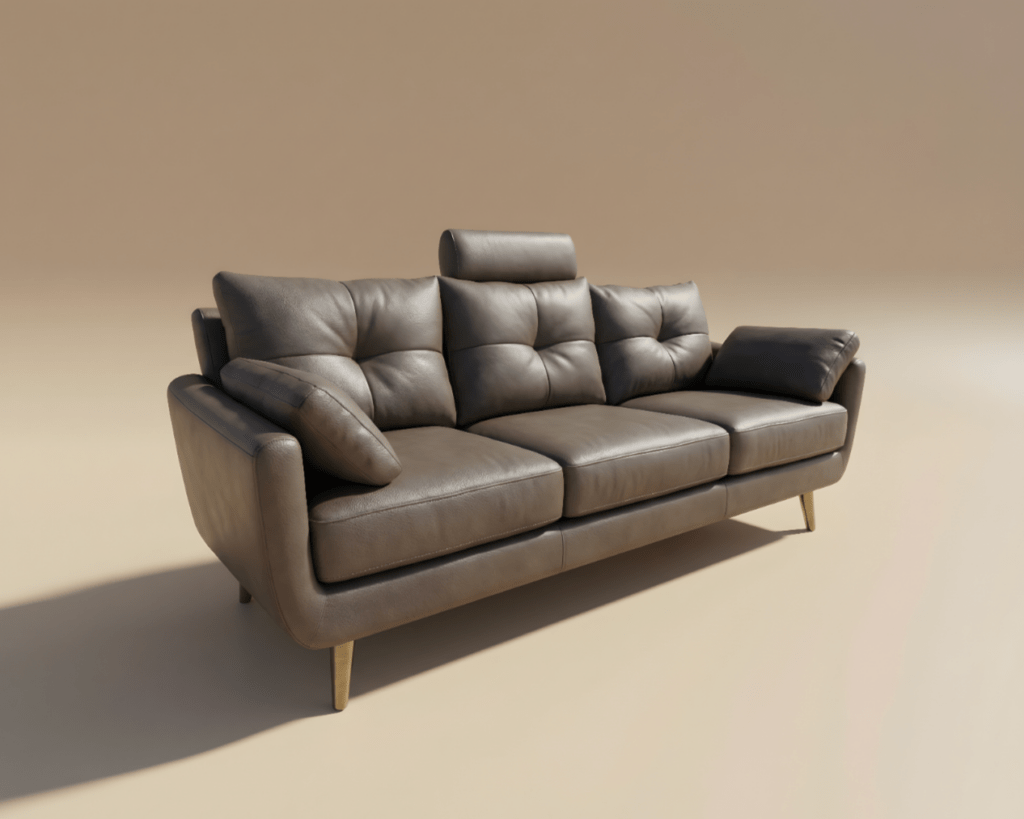
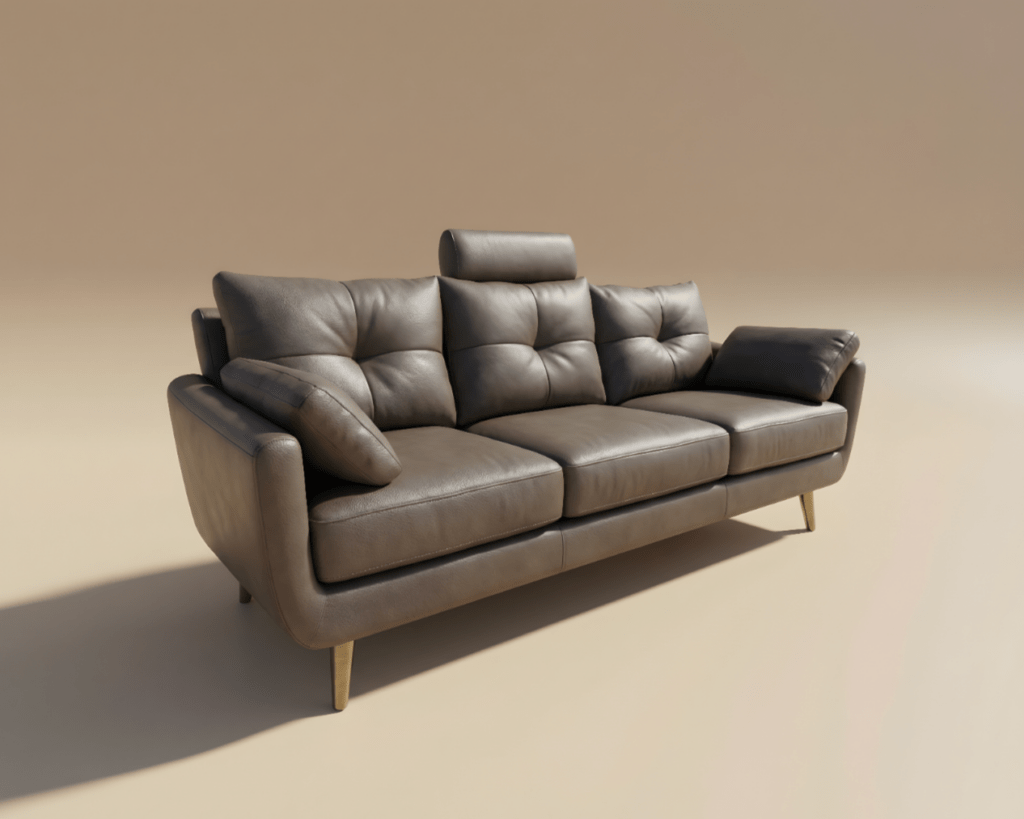
Prompt: A premium contemporary sofa based on the provided sketch, refined for high-end commercial rendering. Plush, well-defined cushions with elegant tufting, smooth ergonomic arms, and a balanced low-profile silhouette. Upholstered in premium fabric or matte leather with rich texture detail. Slim metal legs in brushed brass or satin black. Studio lighting with soft shadows and high material realism. Set against a premium solid background color such as warm beige, soft taupe, or deep charcoal. Clean, luxury furniture branding aesthetic, photorealistic, advertising-ready.
Sample 2
Engine: v4.1
Expert: Product
Camera: Same
Lighting: Daylight
Render Style: Realistic
Geometry: Precise
Prompt Scenario: Render
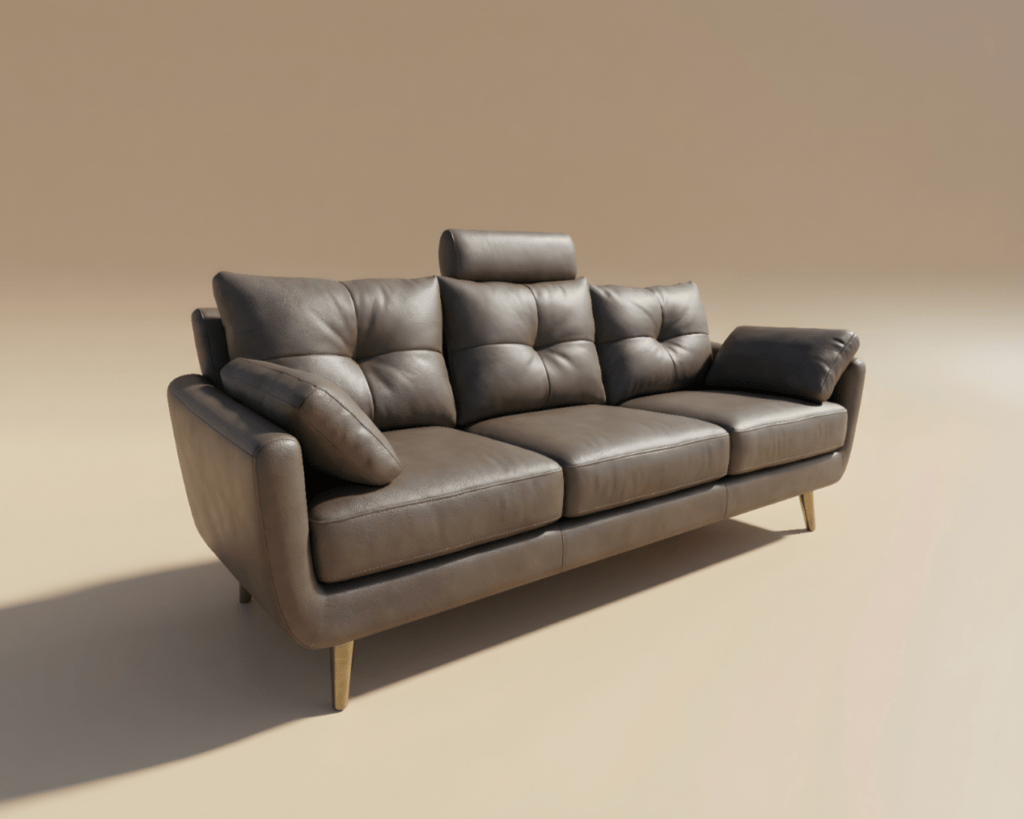
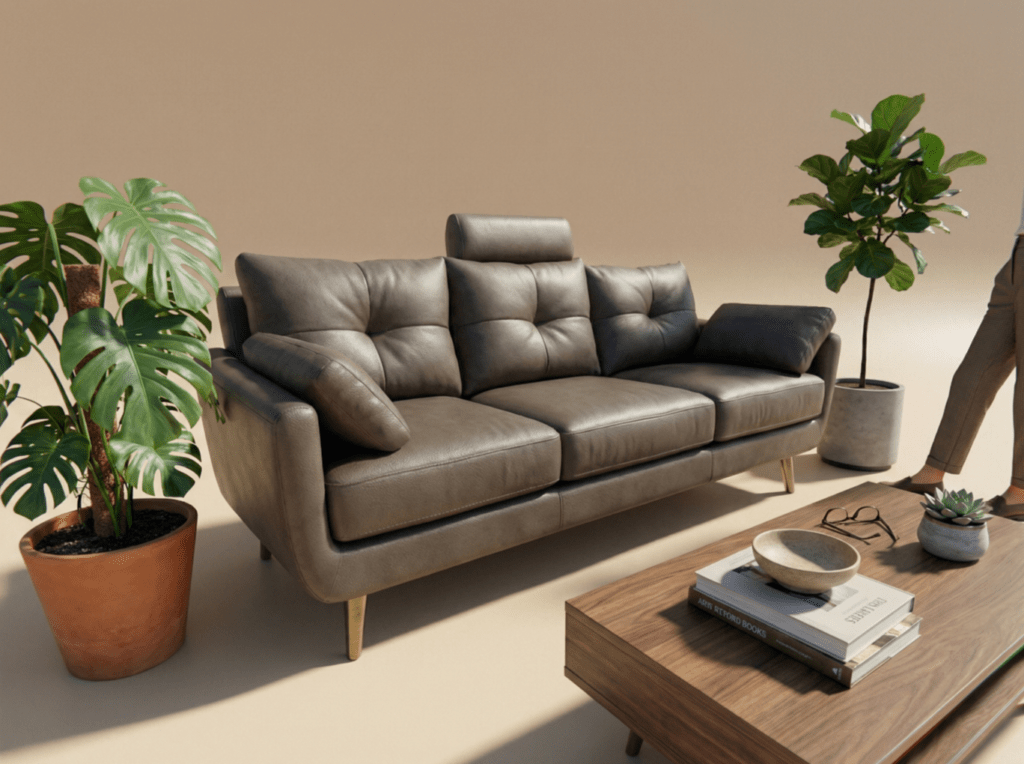
Prompt: add plants, and table with books, same plain background
Sample 3
Engine: v4.1
Expert: Product
Camera: Same
Lighting: Daylight
Render Style: Realistic
Geometry: Precise
Prompt Scenario: Render
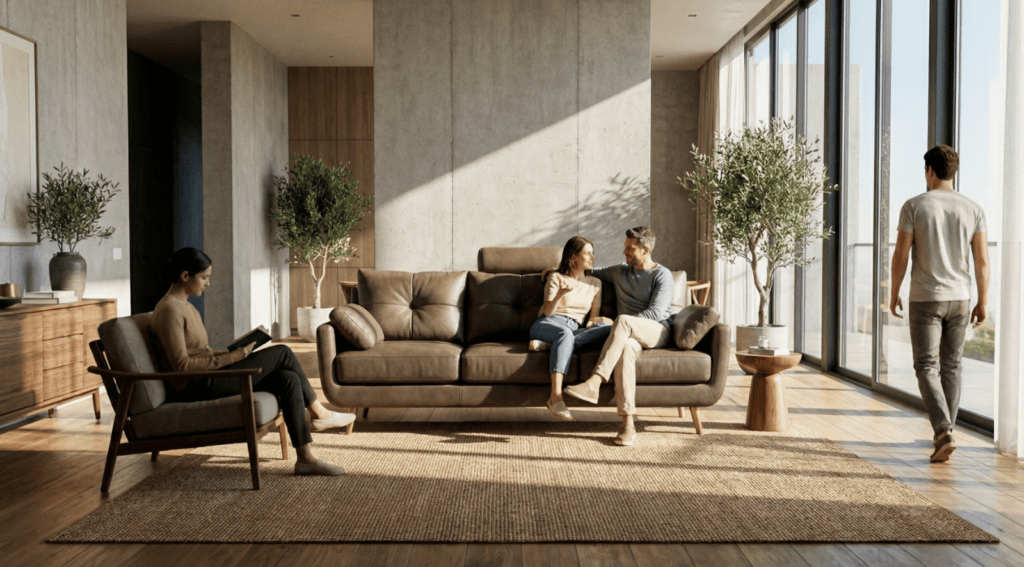
Prompt: put this sofa in a living room with people
Final Takeaways
ArchDiffusion v4.1 makes Product AI approachable, flexible, and fast, even for beginners. By choosing the right project type, geometry mode, and render style, you can move seamlessly from clean studio visuals to lifestyle scenes without rebuilding your setup. Precise geometry ensures accuracy, while prompts drive refinement and storytelling. Start simple, iterate confidently, and use references and scenarios to control realism, creativity, and presentation quality with ease.